Website Building Using HTML-CSS Notes – Class 11 Web Application (803)
Take your exam preparation to the next level with important, exam-focused, syllabus-aligned CBSE Class 11 Website Building Using HTML-CSS Notes. 🚀
Prepared strictly in accordance with the latest CBSE curriculum, these notes deliver every topic in a clear, point-wise format, supported by practical examples, sample code, and output illustrations that make even complex concepts easy to understand. Don’t waste energy hunting through lengthy, fragmented notes. Skip the textbook clutter—study smarter, master every unit, and accelerate your revision. 💡👇
Introduction to HTML
What is a Website?
- A website is a collection of web pages containing information about an organization, institution, or product.
- It contains related content identified by a common domain name and published on one or many web servers.
- Examples: bing.com, wikipedia.org, google.com, amazon.com.
- A website is opened using a Browser (Chrome, Edge, Firefox, Safari).
Types of Website
- Static Website – is one where web pages are delivered exactly same as designed with np real time content changes.
- Dynamic Website – generates deliver content in real time, using databases and scripting languages.
| Static website | Dynamic website |
| It is quick to load | It is slower to load than the static website |
| Same content is delivered everytime | Content may be change every time when delivered |
Languages Used for Website Development
- HTML (Hyper Text Markup Language) – Forms the core structure of a webpage; acts like the skeleton of a building.
- CSS (Cascading Style Sheets) – Controls visual aspects like fonts, colors, and layout.
- JavaScript – Adds interactivity like animations, dynamic updates, and user input handling; acts like the electrical wiring/plumbing of the website.
What is HTML
HTML is a markup language that uses tags to define the structure and content of a webpage and telling web browser how to display webpages.
HTML’s Key Features
- Structure: HTML defines the basic structure of a webpage using headings, paragraphs, lists, images, and other elements.
- Content: HTML tags identify and organise different types of content, such as paragraphs, headings, and images.
- Simplicity: HTML has a simple syntax using angle brackets (< >) and is easy for beginners to learn. It is also platform-independent.
- Collaboration: HTML works with CSS to control appearance and JavaScript to add interactivity to webpages.
Brief History of HTML
- In 1989, Tim Berners-Lee, a physicist at CERN, proposed an Internet-based hypertext system.
- In late 1990, he specified HTML and wrote the browser and server software.
- The first public description of HTML, “HTML Tags,” was mentioned in late 1991 and described 18 elements.
Web Page
- A web page is an HTML document that can be viewed online using a web browser.
- A web page may contain text, images, videos, and hyperlinks to other web pages.
- A website is a collection of related web pages managed by a person or organisation.
- An HTML file contains the text and HTML tags that tell the browser how to organise and display the content.
Prerequisites for Creating an HTML Program
- To create an HTML program, you need a text editor and a web browser. No sophisticated software is required.
- Common text editors used to create HTML documents include Notepad, Notepad++, Sublime Text, and TextEdit (Mac OS).
HTML Tags
- Tags begin with < and end with >.
- General form: <TAGNAME ATTRIBUTE1=”value1″ ATTRIBUTE2=”value2″>
- Tag and attribute names are generally not case sensitive (some attribute values are).
- The tag name must come first; attribute order does not matter.
HTML Element and Attributes
- An HTML element consists of a start tag, content, and an end tag.
- Attributes provide additional information about an element and are always specified in the start tag.
- Attributes usually appear as name/value pairs, e.g., name=”value”.
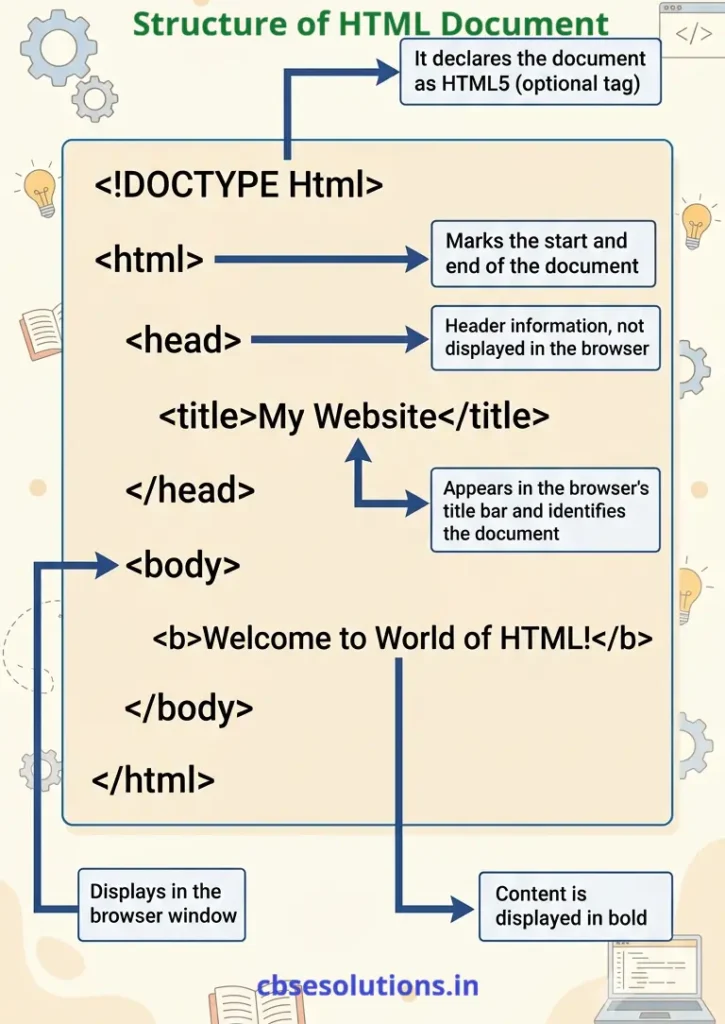
Basic Structure of an HTML Document
How to Run an HTML File
- Type the code in a text editor and save with a .html or .htm extension.
- Open the file by double-clicking it, or right-click → “Open with” → choose a browser.
- The browser interprets the tags and displays content accordingly.
- If the code has errors, the browser may not render the page correctly.
Basic HTML Tags
Container Tags:
- Require a starting tag and an ending tag; the ending tag begins with a slash (/).
- Examples: <HTML>…</HTML>, <HEAD>…</HEAD>, <TITLE>…</TITLE>, <B>…</B>
Empty Tags
- Require only a starting tag, no ending tag.
- Examples: <HR>, <IMG>, <LINK>, <BR>
Important HTML Tags
- <HTML> Tag – Identifies the document as an HTML document; acts as the root/container for all other elements.
- <HEAD> Tag – Defines the document header; does not affect the page’s appearance; can include the title.
- <TITLE> Tag – Defines the title of the document, placed between <HEAD> tags; must be simple text (no links or markup).
- <BODY> Tag – Defines the main part of the document containing text, images, lists, tables, hyperlinks, etc.
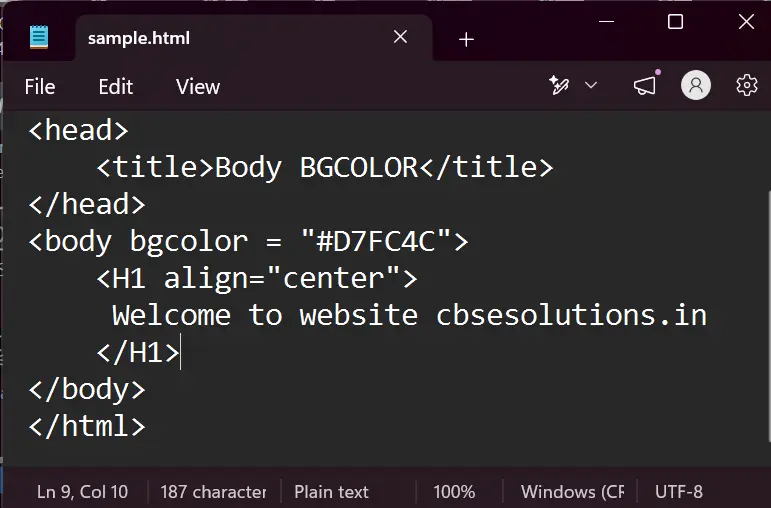
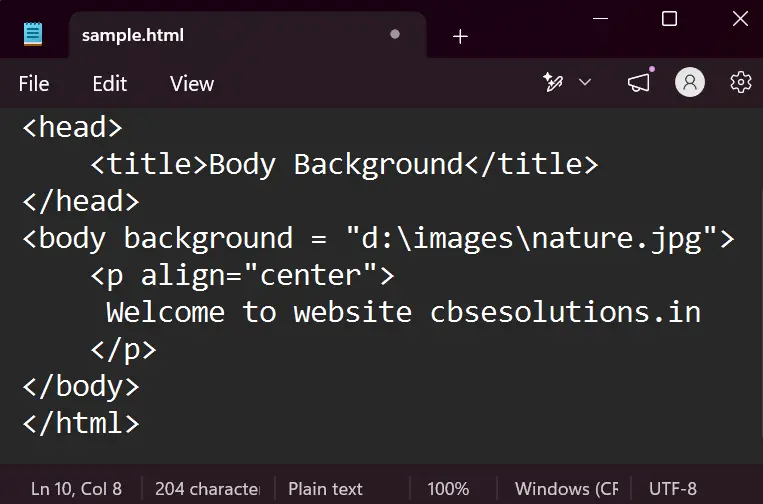
- bgcolor attribute sets background color (by hex value, RGB value, or color name).
- background attribute sets a background image using a URL; small images repeat to fill the window.
Heading Tags (H1 to H6)
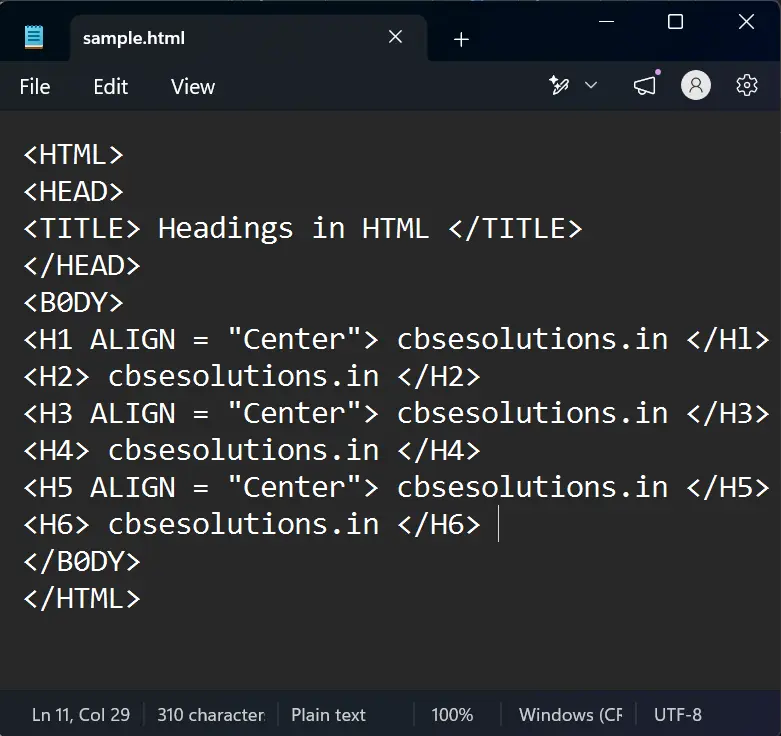
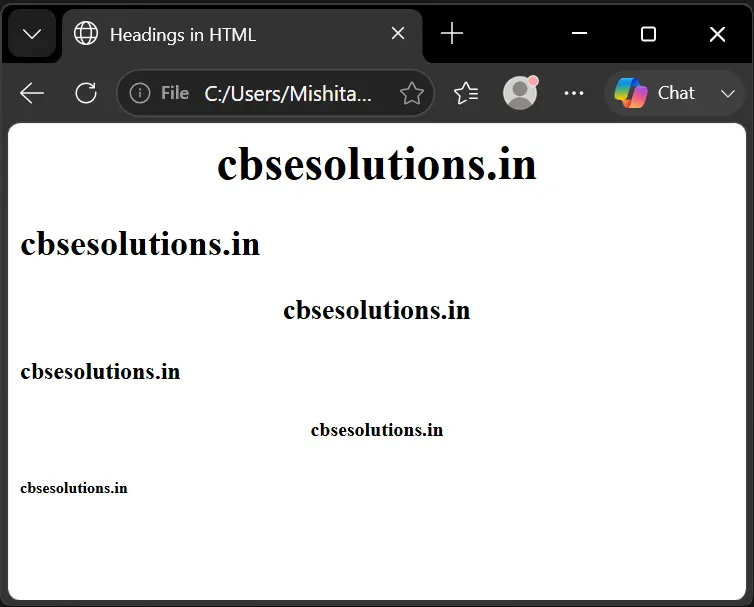
- Six levels of headings, numbered 1 (largest/boldest) to 6 (smallest).
- The first heading in a document should be <H1>.
- ALIGN attribute can set heading position as LEFT, RIGHT, or CENTER.
Example
Paragraph <p> Tag
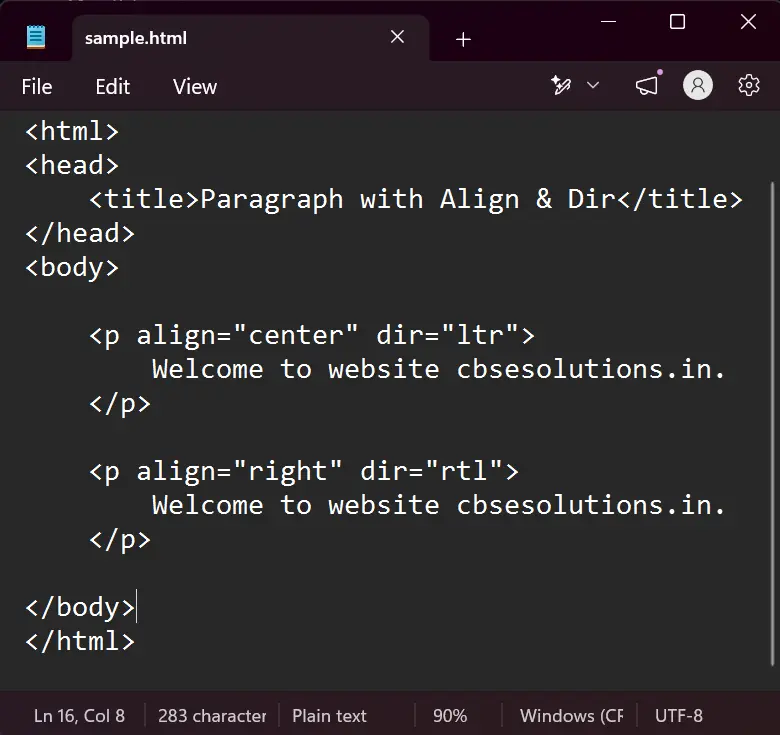
- The <p> tag is used to create a paragraph in an HTML document.
- It displays text as a separate paragraph with space before and after it.
Attributes of <p> Tag
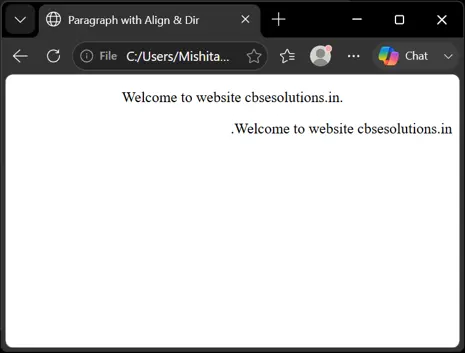
- align: Specifies the horizontal alignment of paragraph text. Values are left (default), center, and right.
- dir: Specifies the direction of the paragraph text. ltr means left-to-right, while rtl means right-to-left
Example
Line Break <BR> Tag
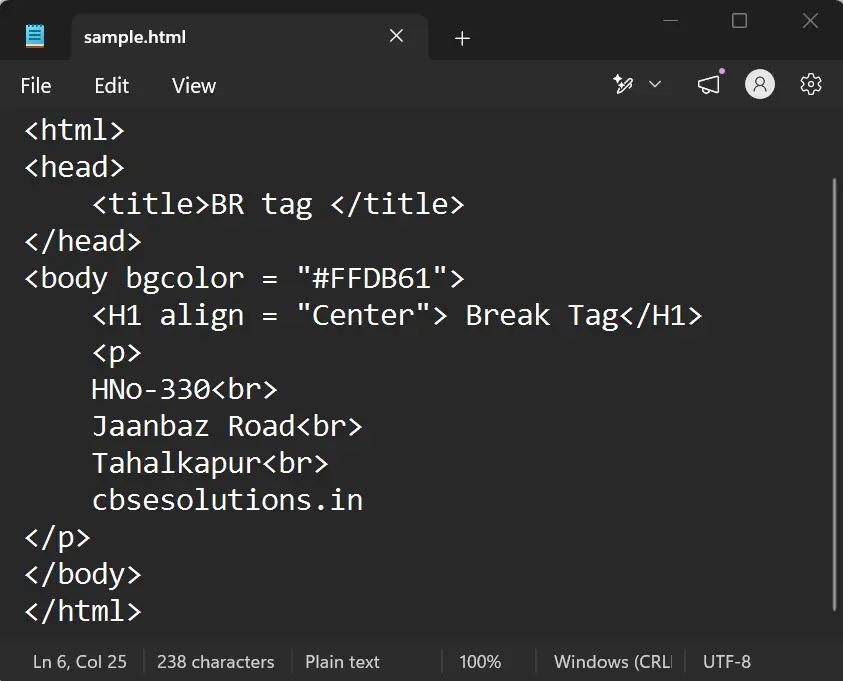
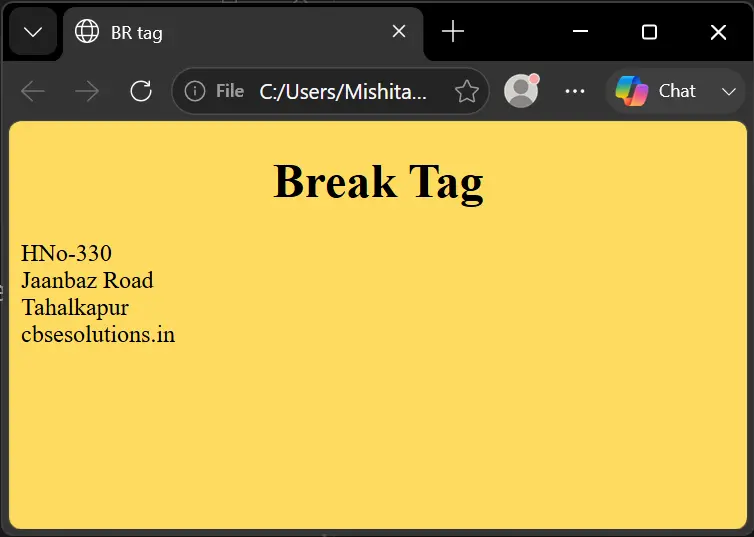
- The <br> tag is used to end the current line and start the text from the next line.
- It is useful for displaying information that needs to appear on separate lines, such as an address.
Example
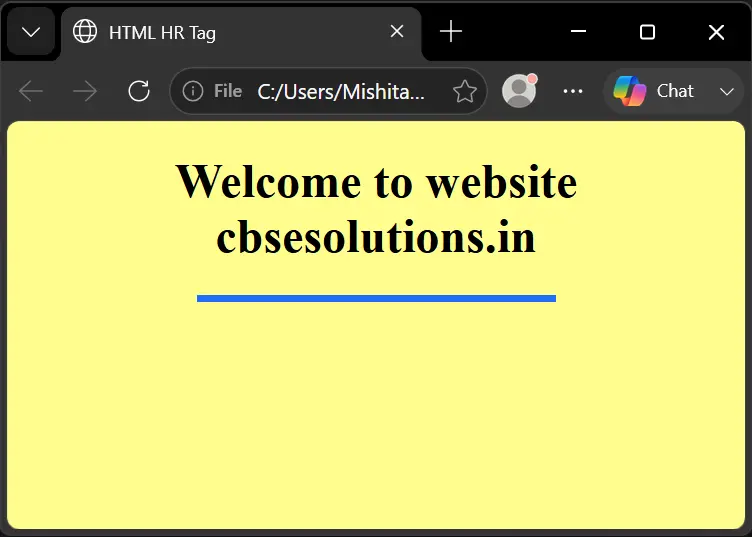
Horizontal Rule <HR> Tag
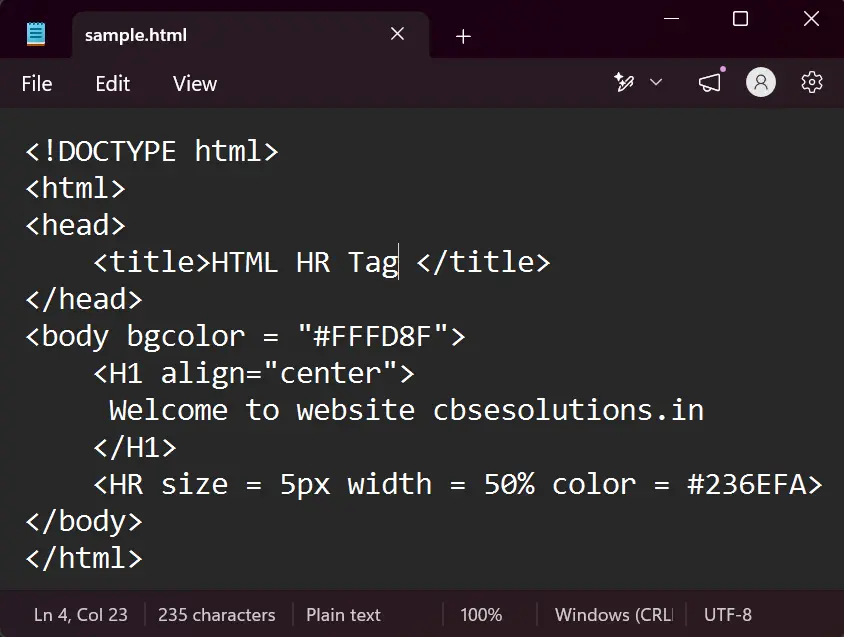
- Produces a horizontal line across the browser window.
- Attributes:
- align (left/center/right, default left)
- size (height in pixels, default 3px)
- width (in pixels or %)
- color
Example
<FONT> Tag
- The <font> tag is used in older HTML to change the font size, colour, and style of text using the size, color, and face attributes.
- The <font> tag is not recommended in modern web development. CSS properties such as font-size, color, and font-family should be used instead.
Attributes of <FONT> tag
- size Attribute: The size attribute specifies the size of the text, ranging from 1 (very small) to 7 (very large). The default size is 3.
- color Attribute: The color attribute specifies the colour of the text using a colour name or hexadecimal/RGB value.
- face Attribute: The face attribute specifies the font type, such as Arial or Verdana.
Comments in HTML
- Comments are added using <!– comment –> and are ignored by the browser.
- Comments help explain code, communicate reasoning, and act as documentation.
- Private information should never be placed in comments since source code is publicly viewable.
Superscript and Subscript
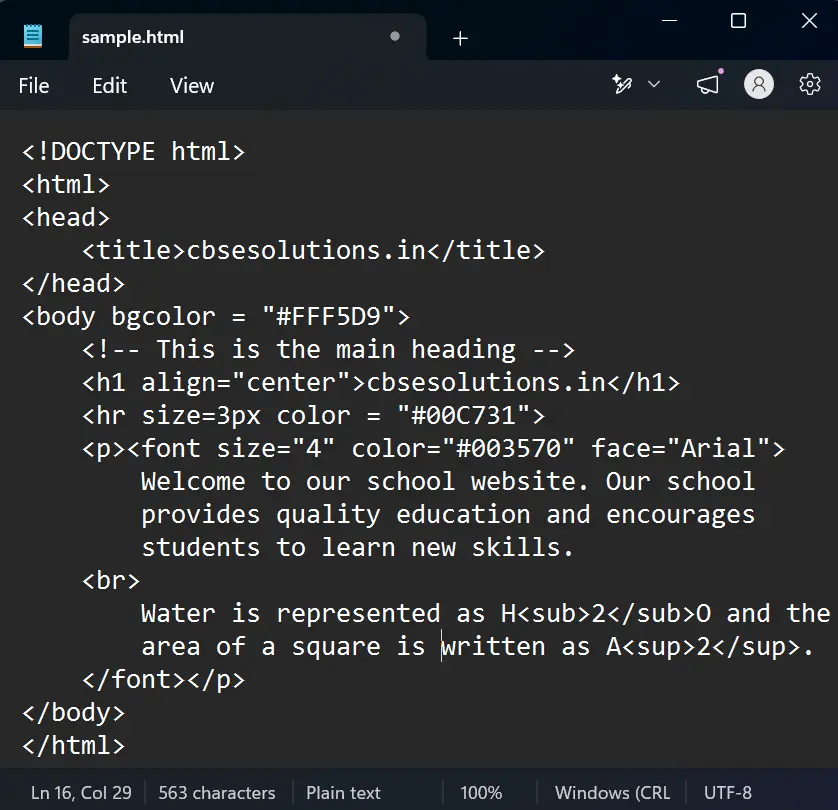
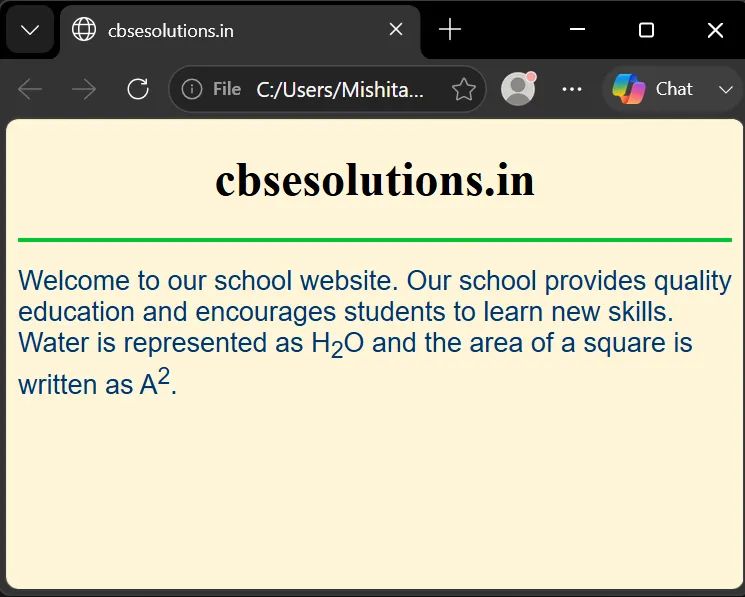
- <sup> – Raises text above the baseline (used for exponents, footnotes, trademarks). Example: The formula for the area of a square is A <sup>2</sup>.
- <sub> – Lowers text below the baseline (used for chemical formulas, units, indexing). Example: The chemical formula for water is H <sub>2</sub> O.
Example
Images in HTML
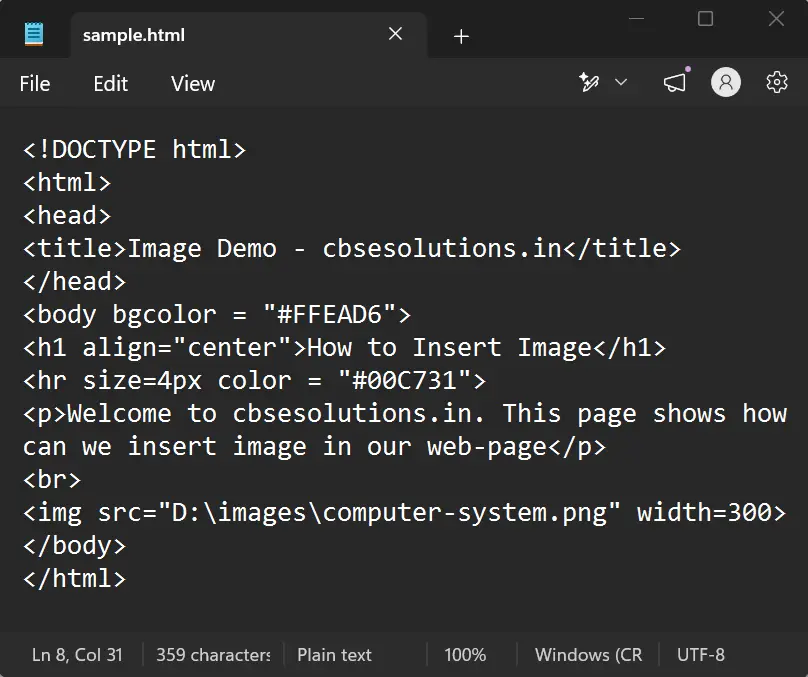
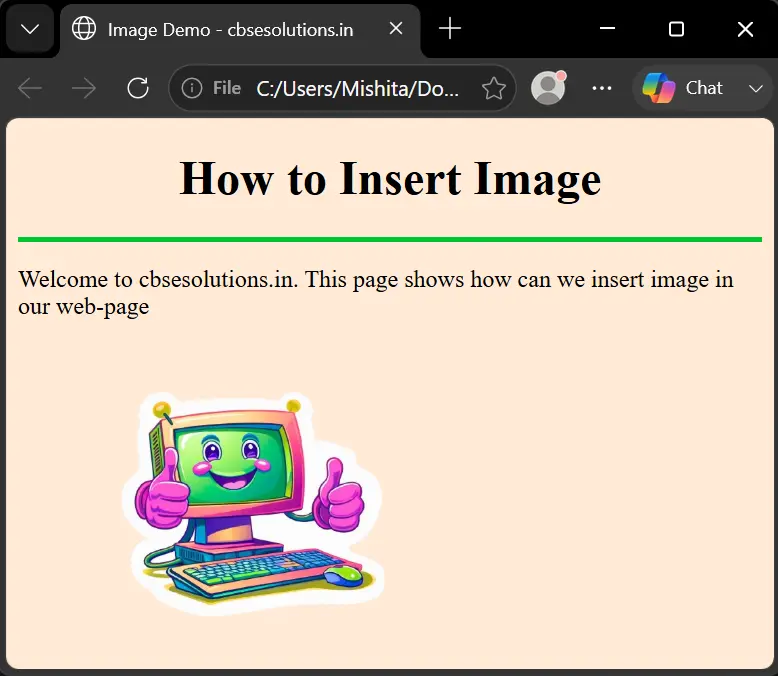
- The <img> tag embeds an image into an HTML document.
- Required attribute: src – specifies the path or URL of the image file.
- Additional attributes:
- width – sets image width in pixels.
- height – sets image height in pixels.
- title – displays a tooltip on hover (optional).
- align – sets alignment (left, center, right for horizontal; top, bottom for vertical).
- border – adds a border and sets its width in pixels.
- alt – provides alternative text if the image fails to load; important for accessibility and search engines.
Lists in HTML
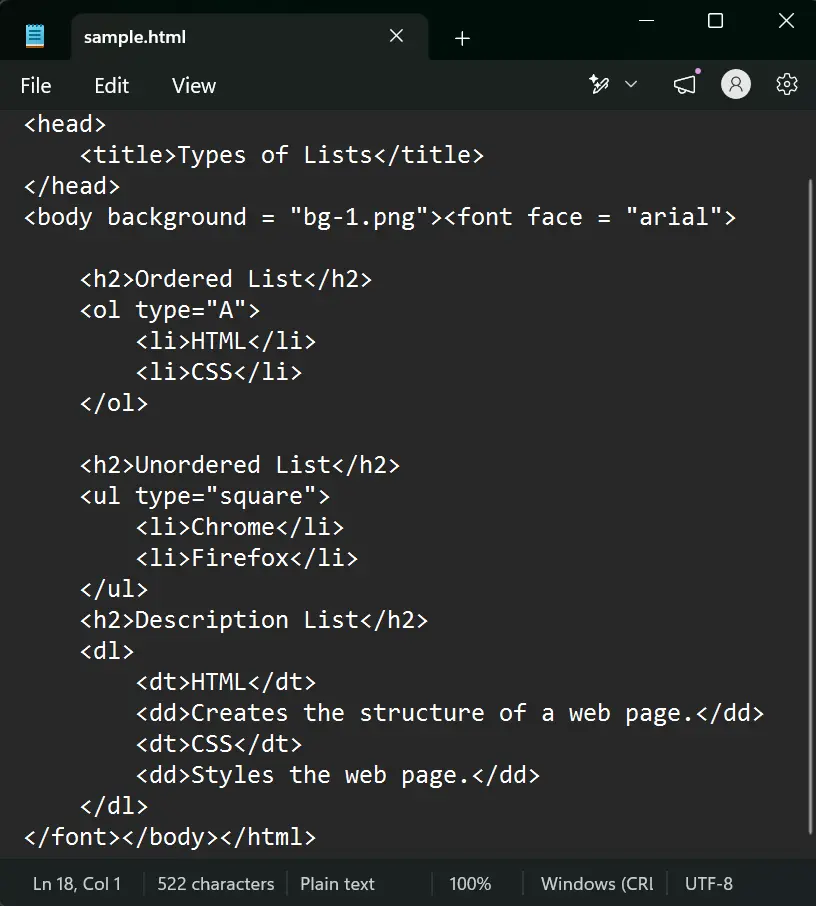
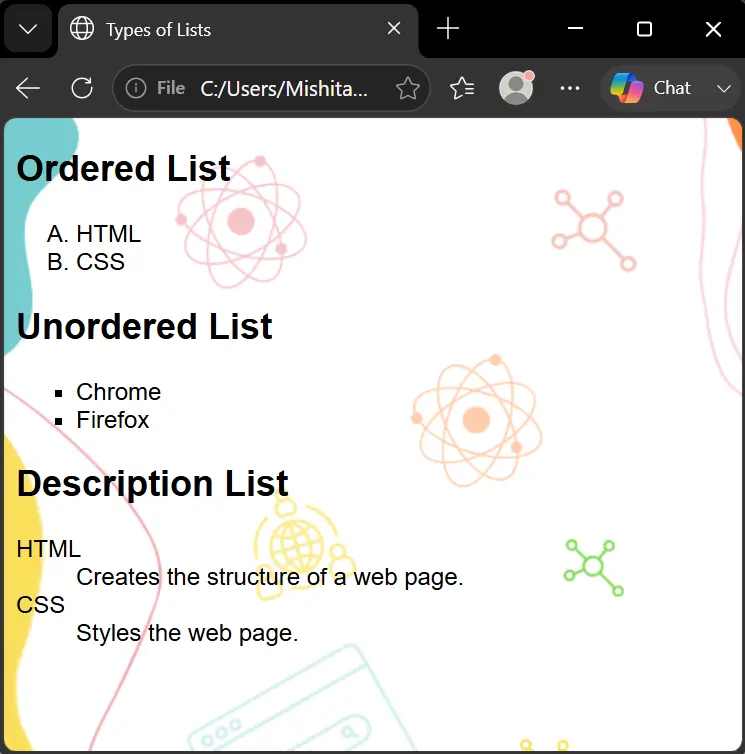
Ordered List (<ol> tag)
- Used for items with a specific sequence.
- Each item uses the <li> (list item) tag.
- Items are numbered automatically starting from 1 by default;
- also called numbered lists.
Attributes of <ol> Tag
- type=”1″: Displays list items using numbers. This is the default style.
- type=”A”: Displays list items using uppercase letters (A, B, C…).
- type=”a”: Displays list items using lowercase letters (a, b, c…).
- type=”I”: Displays list items using uppercase Roman numerals (I, II, III…).
- type=”i”: Displays list items using lowercase Roman numerals (i, ii, iii…).
- start attribute: used to begin numbering from a specified number, e.g.,
Unordered List <ul>
- The <ul> tag is used to create a list where items do not follow a specific order or sequence.
- Each item in an unordered list is written using the <li> (list item) tag.
- By default, the browser displays bullet points for the list items.
- Unordered lists are also called bulleted lists.
type Attribute
- type=”disc”: Displays filled circular bullets. This is the default style.
- type=”square”: Displays solid square bullets.
- type=”circle”: Displays hollow circular bullets.
Description List (<dl> tag):
- Used for defining terms and their descriptions.
- The <dl> tag defines the entire description list.
- The <dt> tag defines a term or name in the description list.
- The <dd> tag defines the description of the corresponding term
Example
Tables in HTML
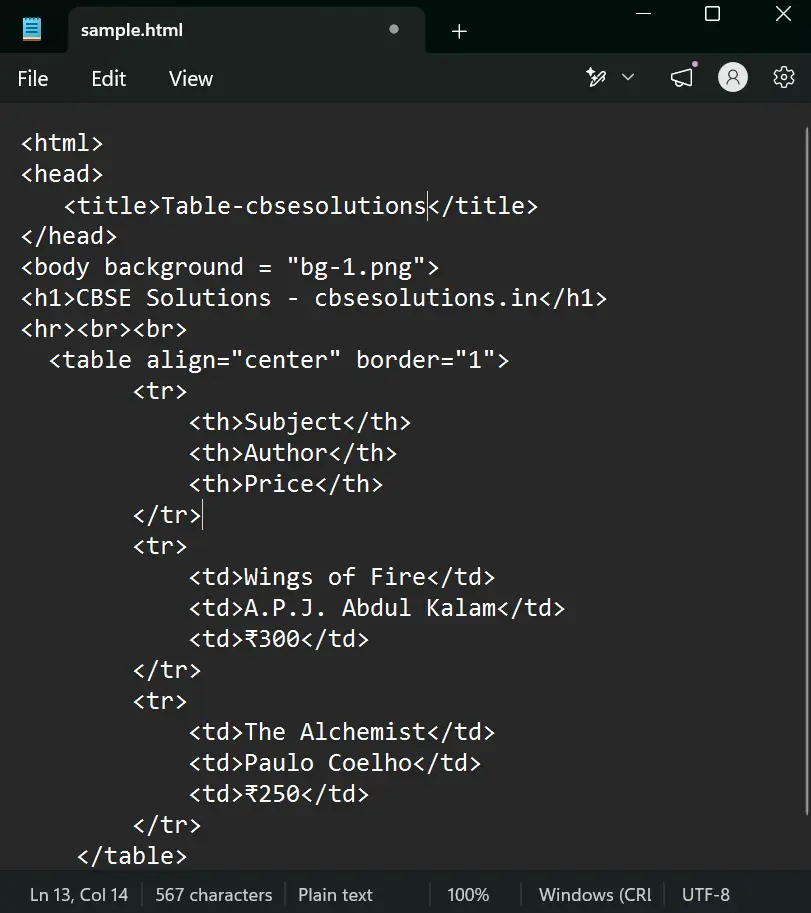
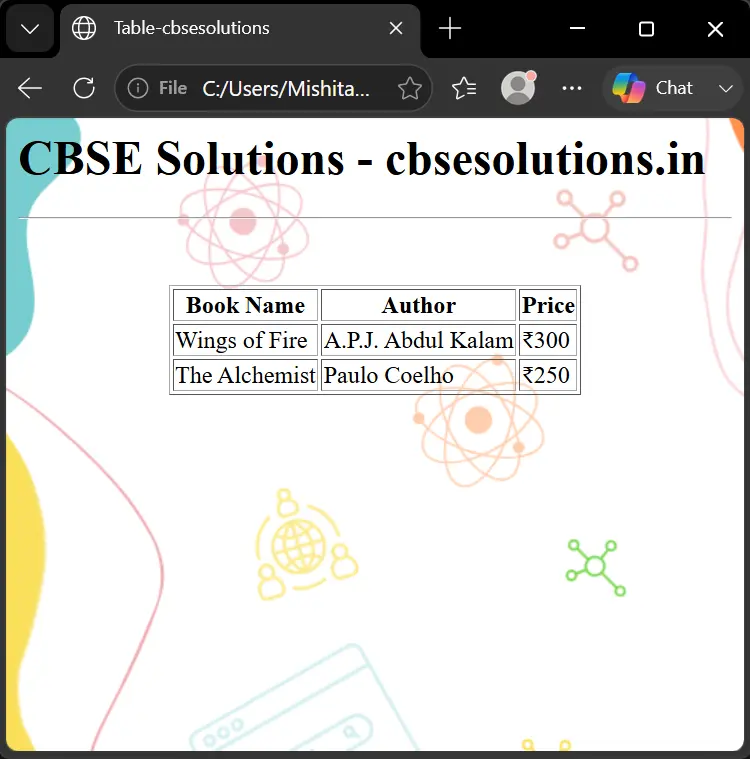
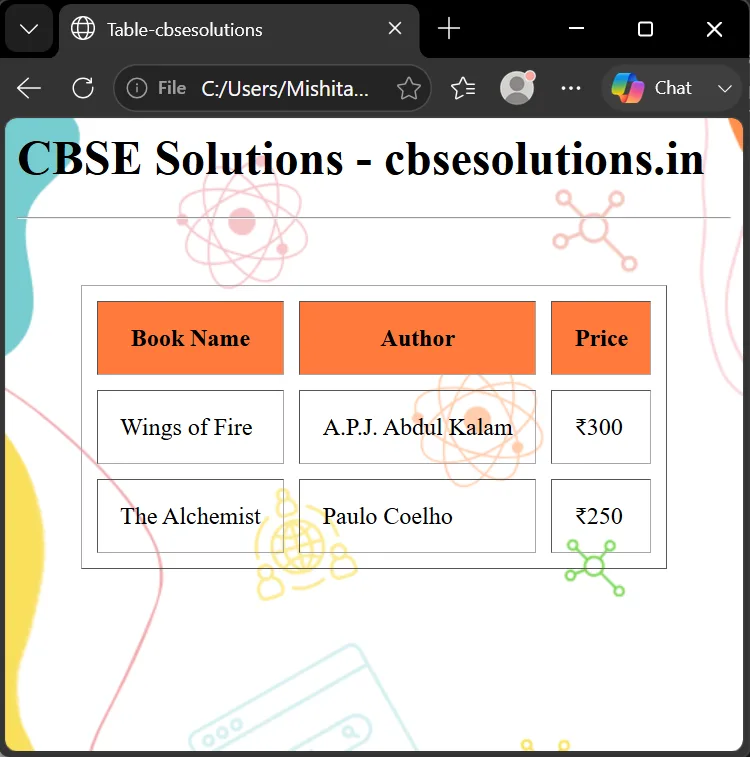
- HTML tables are defined using the <table> tag and organize data into rows and columns.
- <TR> – adds a new row (Table Row).
- <TH> – adds a column heading (Table Heading), displayed bold and centered by default.
- <TD> – adds table data (Table Data).
- The border attribute adds visible lines between cells, e.g., <table border=2>.
- Each data cell can contain any content — links, images, lists, or even other tables.
- Rows run top to bottom and cells run left to right.
- Most browsers do not require closing </TR> or </TD> tags (though </TABLE> is still required).
Example
Cells Spanning Multiple Columns/Rows
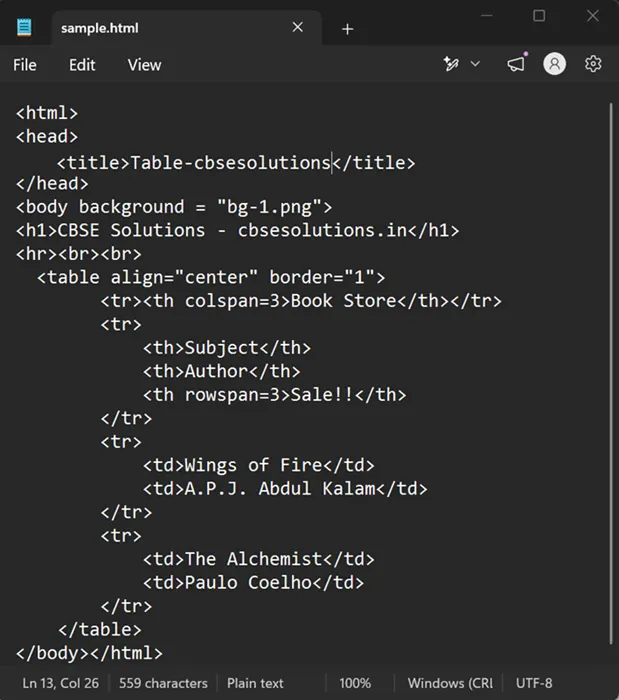
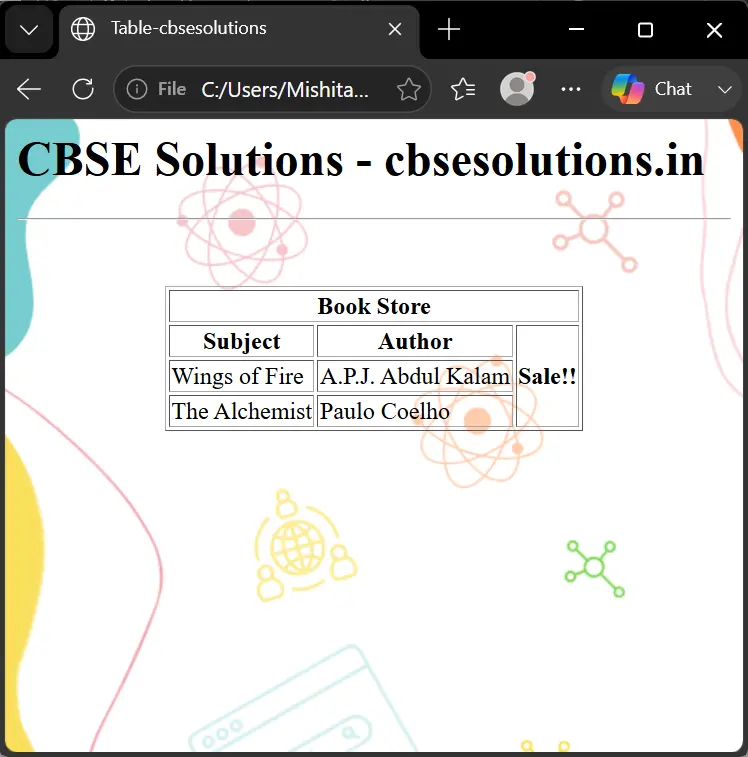
- colspan attribute (in <TD>/<TH>) makes a cell span multiple columns.
- rowspan attribute makes a cell span multiple rows.
- When a cell spans, the overlapped cells should not be defined separately.
Example
Cellspacing and Cellpadding
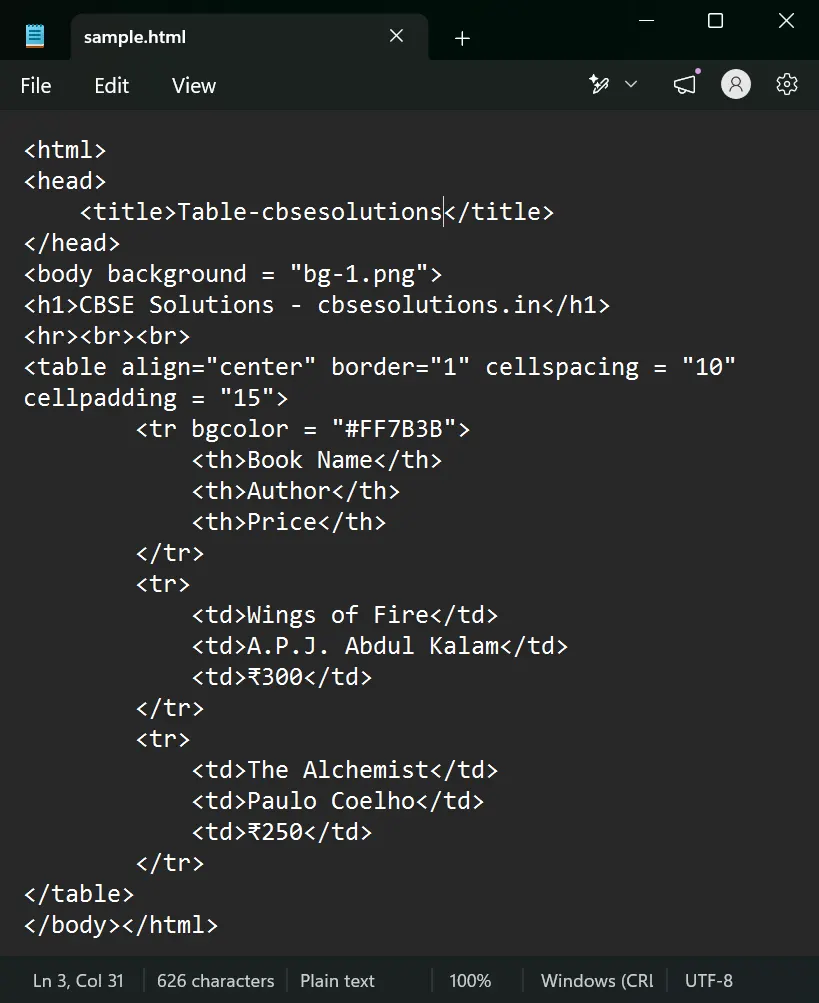
- cellspacing – creates space between different cells within the table.
- cellpadding – sets space between the cell’s content and its border/wall; default cellpadding is 1.
- Cellpadding is usually more effective than cellspacing for spreading table content.
Example
Aligning Cell Contents
- By default, cell content is left-justified and vertically centered.
- align attribute (in <TD>) sets horizontal placement: left, right, or center.
- valign attribute sets vertical placement: top, middle, bottom, or baseline.
- align and valign can also be used in the <TR> tag to affect all cells in that row.
Div and Span Tags
<DIV>
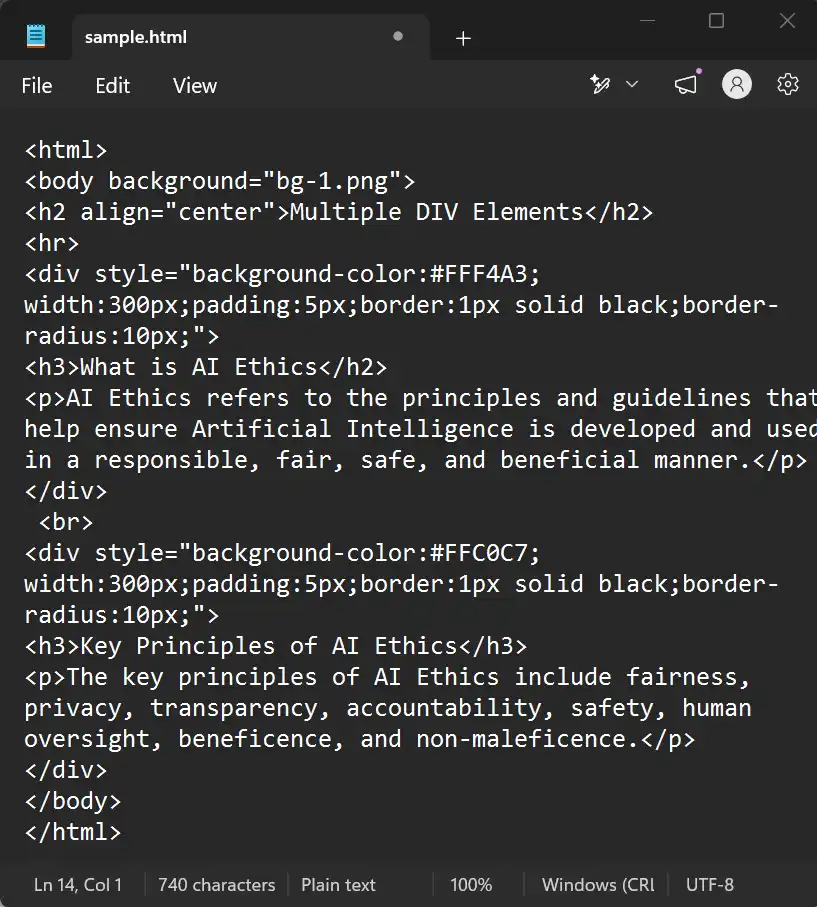
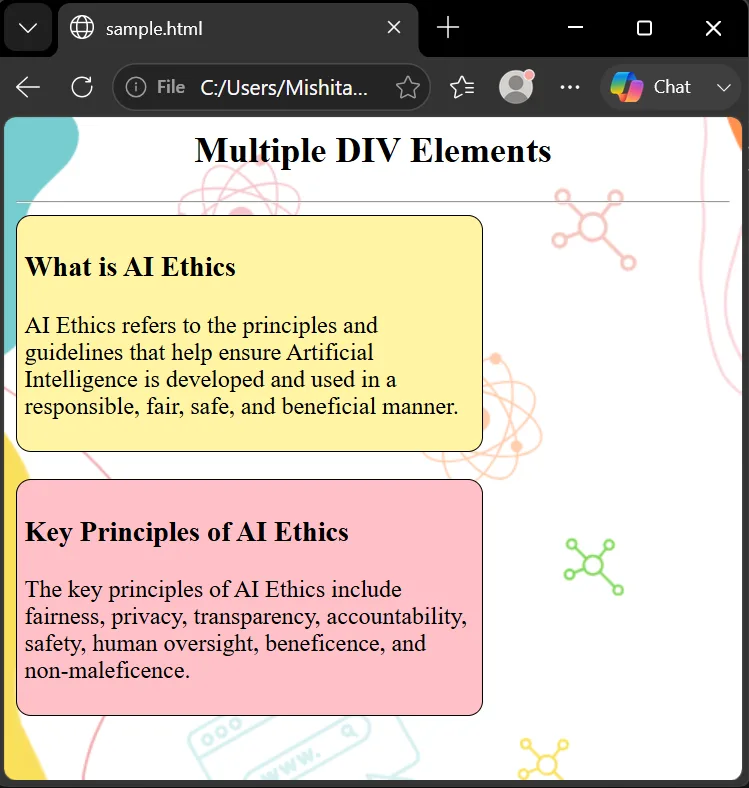
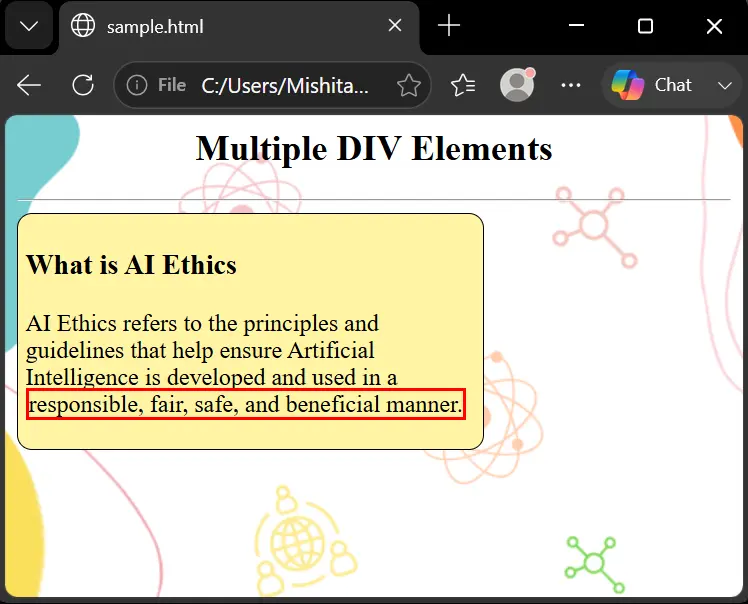
- The <div> tag is used as a container to group different sections of a webpage together.
- It helps in creating neat, organized, and structured sections on a webpage.
- The <div> tag can be used multiple times on the same webpage to create different sections.
<SPAN>
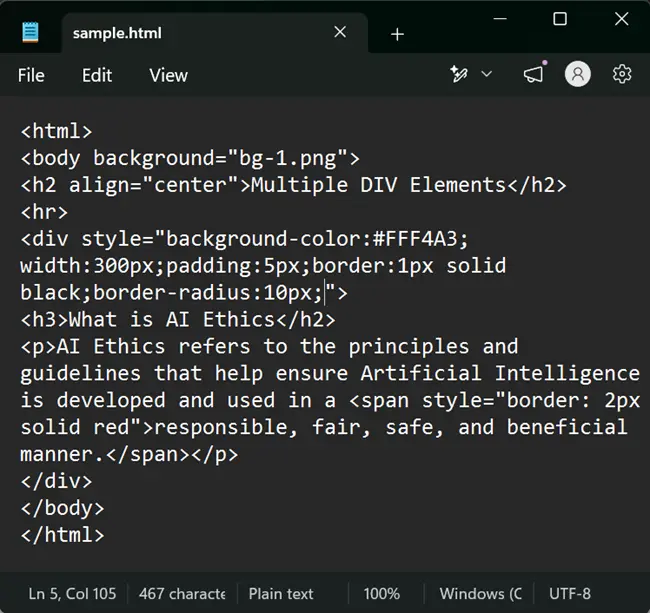
- The <span> element is used to make a specific part of a paragraph stand out or apply formatting to selected text.
- It is an inline element, so it does not start on a new line.
- The <span> element takes up only as much width as the content requires.
Example
Hyperlinks – <a> (anchor) tag
- In HTML, hyperlinks are created using the <a> (anchor) tag. They allow users to navigate to different webpages or sections within the same webpage.
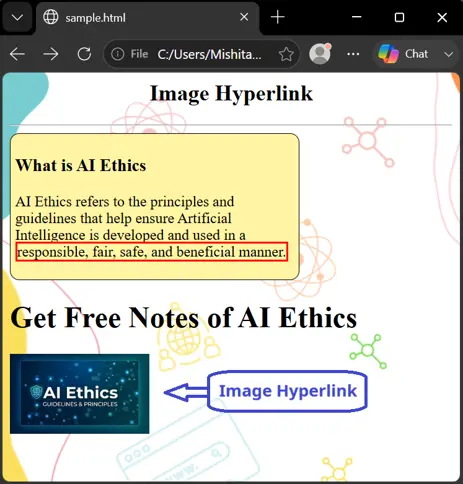
- Almost any HTML content can be made into a link, including text, images, and other HTML elements.
Attributes of <a> (anchor) tag
- href (required) – specifies the URL of the target resource such as webpage or file that the link points to.
- target (optional) – defines where the linked resource opens such as in a new browser tab or window.
Example:
<a href = https://cbsesolutions.in>Visit CBSE Skill Subject Solutions</a>
Types of Links
- Absolute links – specify the full URL, e.g., href=” https://cbsesolutions.in/about.html “.
- Relative links – specify a path relative to the current page’s location, e.g., href=”about.html”.
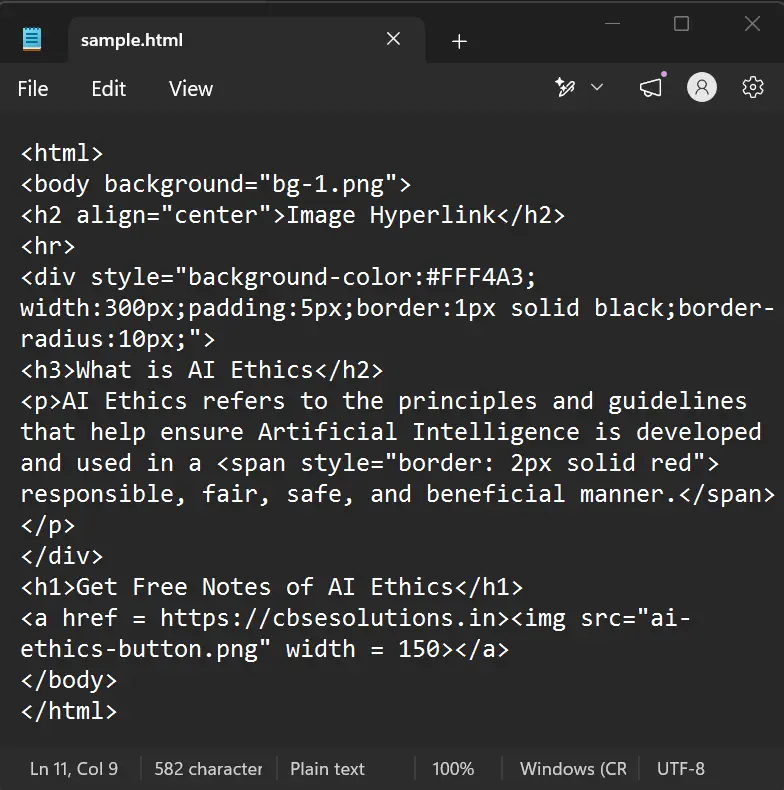
Using an Image as a Hyperlink
Why HTML Links are Called Hyperlinks
- Clicking a link jump to another document.
- The mouse pointer turns into a hand icon when hovering over a link.
- Links and visited links can have different colors.
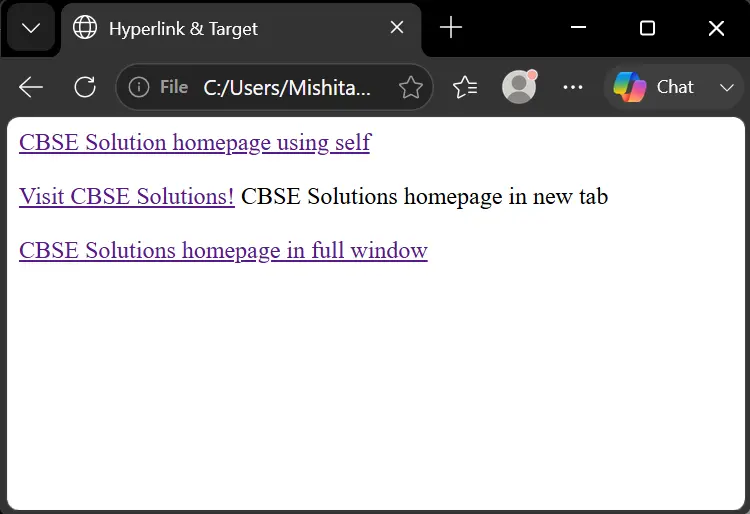
Using the target Attribute
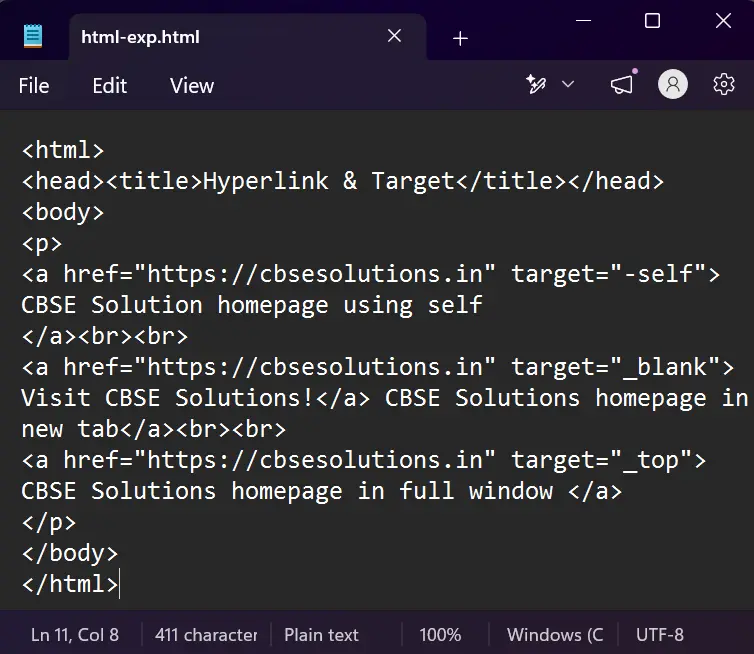
- The target attribute specifies where to open the linked document.
- The target attribute can have one of the following values:
- _blank – opens the linked document in a new window or tab.
- _self – opens in the same window/tab/frame (default).
- _parent – opens in the same window where the link was clicked.
- _top – opens in the full body of the window.
Example
Types of Linking
There are two types of linking in HTML;
- Internal linking
- External linking
Internal Linking
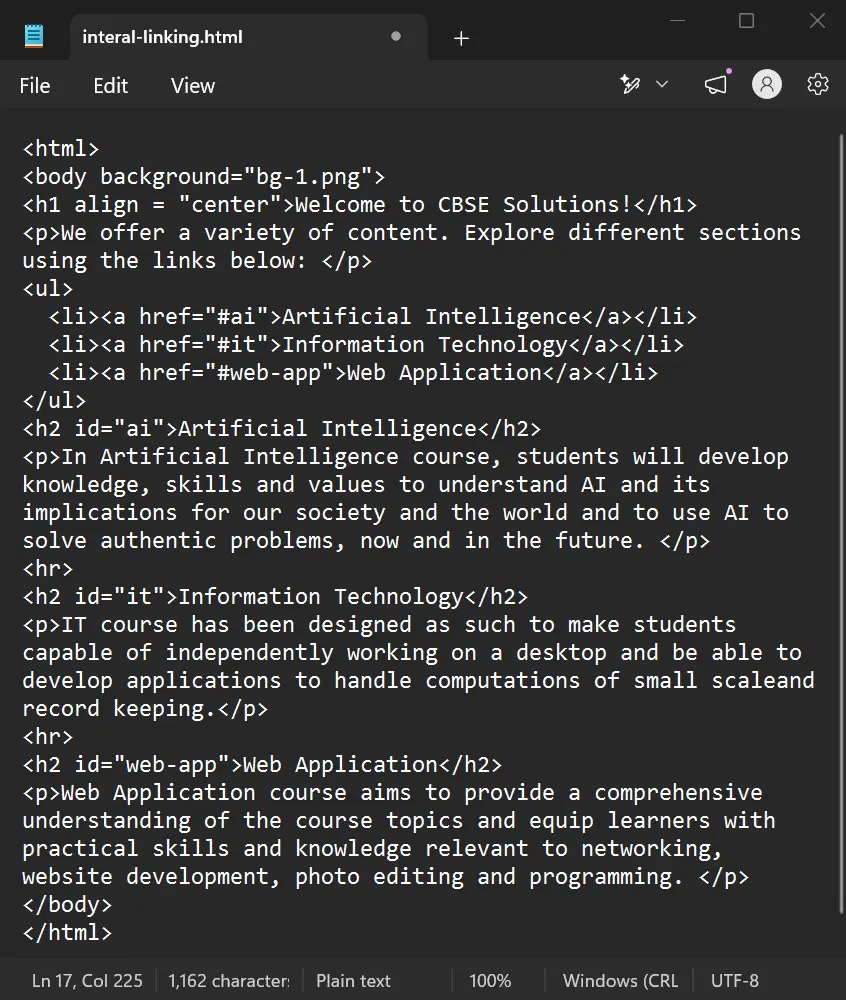
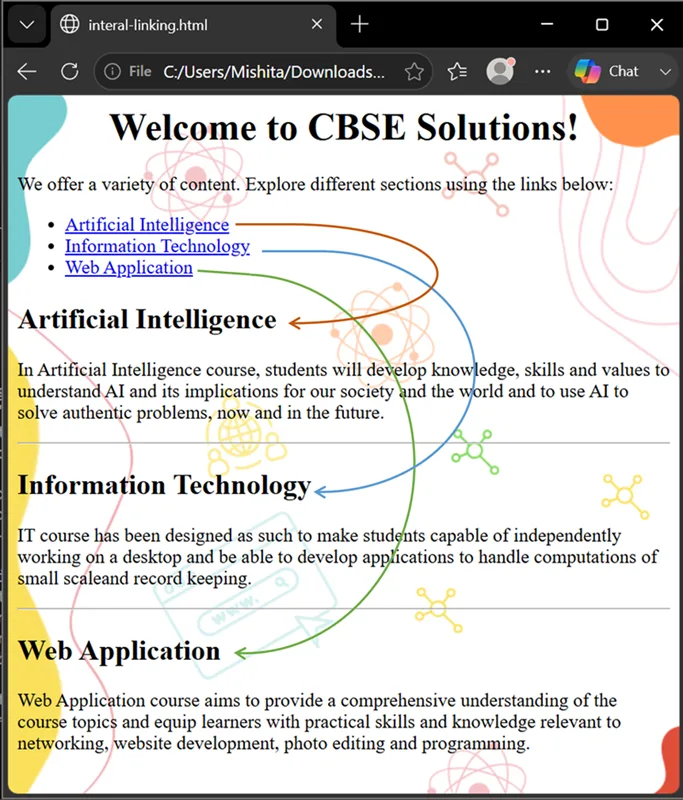
- Internal linking is used to create a link from one section of a webpage to another section within the same webpage.
- An internal link is created by assigning a unique id to the section that we want to link to.
- The # (hash) symbol is used before the id in the link to refer to the target section of the same webpage.
- Internal linking helps users quickly navigate to different sections of a webpage.
Example
External Linking
- External linking is used to create a link from one webpage to a different webpage or website.
- The <a> (anchor) tag is used to create an external hyperlink in HTML.
- The href attribute specifies the URL/address of the webpage or resource to which the link points.
- The text written between the opening and closing <a> tags is displayed as the clickable hyperlink on the webpage.
- An anchor can link to different types of resources, such as an HTML page, image, sound file, or movie.
Example
<a href = https://cbsesolutions.in>Visit CBSE Skill Subject Solutions</a>
Inserting Audio and Video in a Webpage
- HTML provides dedicated <audio> and <video> tags to embed multimedia content in a webpage.
Audio
- The <audio> tag is used to embed audio content in a webpage. The controls attribute adds playback controls such as play, pause, and volume.
- Multiple <source> tags can be used to provide different audio formats using the src and type attributes.
Example:
<audio controls>
<source src=”audio.mp3″ type=”audio/mpeg”>
Your browser does not support the audio element.
</audio>
Video
- The <video> tag is used to embed video content in a webpage. The controls attribute adds playback controls such as play, pause, and volume.
- The width and height attributes can be used to specify the size of the video player.
Example:
<video controls width=”400″ height=”300″>
<source src=”video.mp4″ type=”video/mp4″>
Your browser does not support the video element.
</video>
Common Audio and Video Attributes
- autoplay starts the audio or video automatically when the page loads.
- loop continuously repeats the audio or video after it finishes.
- muted starts the audio or video with the sound turned off.
- The autoplay, loop, and muted attributes can be used together to customize multimedia playback.
Forms
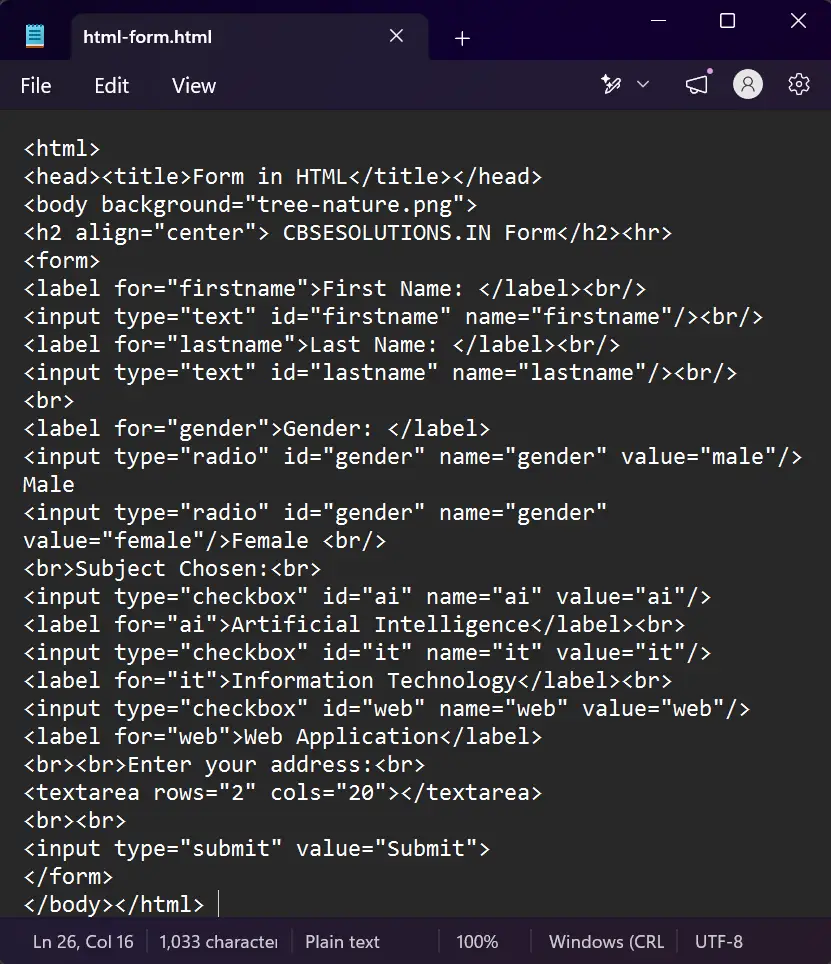
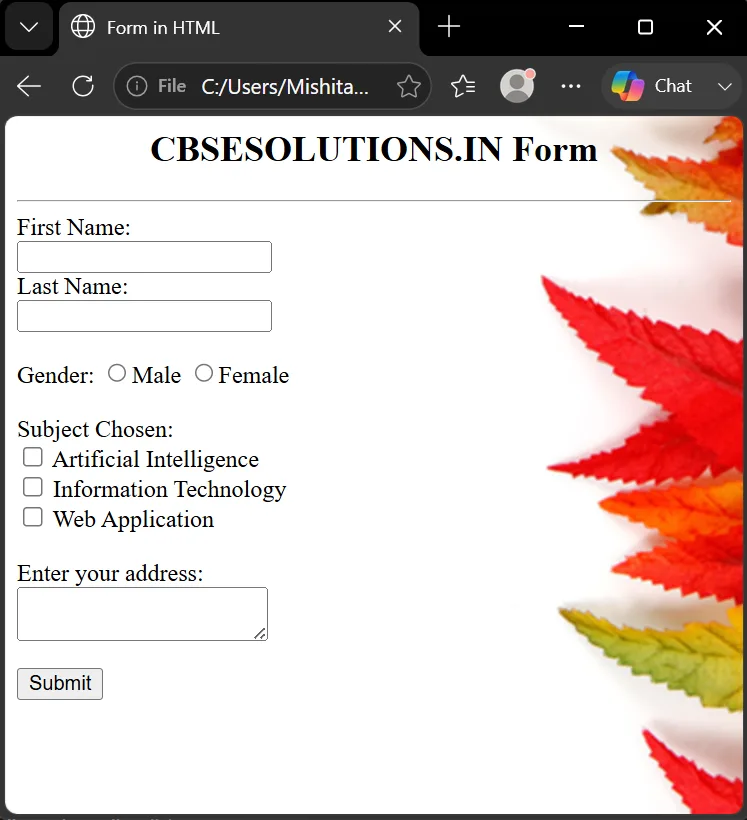
- HTML forms let users interact with a webpage by submitting information.
- The <FORM> tag is a container tag started by <FORM> and ended by </FORM>.
Attributes of <FORM>
- NAME – specifies the form’s name (needed if there are multiple forms; not displayed on the page).
- ACTION – specifies the URL where form data is sent on submission (the destination).
- METHOD – specifies how form data is submitted:
- get – form data is submitted as URL variables.
- post – form data is submitted as an HTTP post.
- Syntax: <FORM NAME=”FormName” ACTION=”URL” METHOD=”method”>
Common Input Elements
- Text Input (type=”text”) – single-line text field for free-form text.
- Password Input (type=”password”) – masks entered characters for security.
- Email Input (type=”email”) – field for email address; browsers may perform basic validation.
- Checkbox (type=”checkbox”) – lets users select/deselect options; multiple can be selected.
- Radio Button (type=”radio”) – lets users select only one option from a group sharing the same name.
- Text Area (<textarea>) – multi-line text input; rows and cols set visible size.
- File Upload (type=”file”) – lets users select a file from their device to upload.
- Submit Button – <input type=”submit” value=”Submit”> triggers form submission.
Common Attributes Used with Input Elements
- id – unique identifier for the element.
- name – identifies the submitted data.
- placeholder – shows hint text inside the field.
- required – forces the user to fill the field before submission.
- value – assigns a value to be submitted (used with radio buttons, etc.).
- checked – makes a radio button/checkbox selected by default.
Example
Special Characters in HTML
- Typing < or > directly in HTML is interpreted as a tag, so special character sequences (escape codes) must be used.
- Sequences start with & and end with ;.
- > – greater than symbol (>)
- < – less than symbol (<)
- " – double quotes (“)
- & – ampersand itself (&)
Example:
<p>Displaying €
<p>Displaying > and <</p>
<p>Displaying "</p>
Introduction to CSS – What is CSS?
- CSS stands for Cascading Style Sheets and is used to style and design webpages.
- CSS specifies the appearance of elements such as headings, paragraphs, tables, lists, and forms, giving the website a uniform and professional look.
- CSS controls the layout, colours, fonts, and overall visual appearance of a webpage.
- Modern CSS helps create responsive websites that work well on desktops, laptops, tablets, and smartphones.
- HTML provides the structure of a webpage, while CSS controls its style and appearance.
Advantages of CSS
- Improves website appearance: CSS makes websites attractive, professional, and visually appealing.
- Easy updates: A single stylesheet can control multiple pages, so changes made to the CSS are reflected across the website.
- Faster loading: Using external .css files can make webpages lighter and faster to load.
- Responsive websites: CSS allows webpages to adapt to different screen sizes such as laptops, tablets, and smartphones.
Three Ways to Implement CSS
There are three ways to apply CSS to an HTML document:
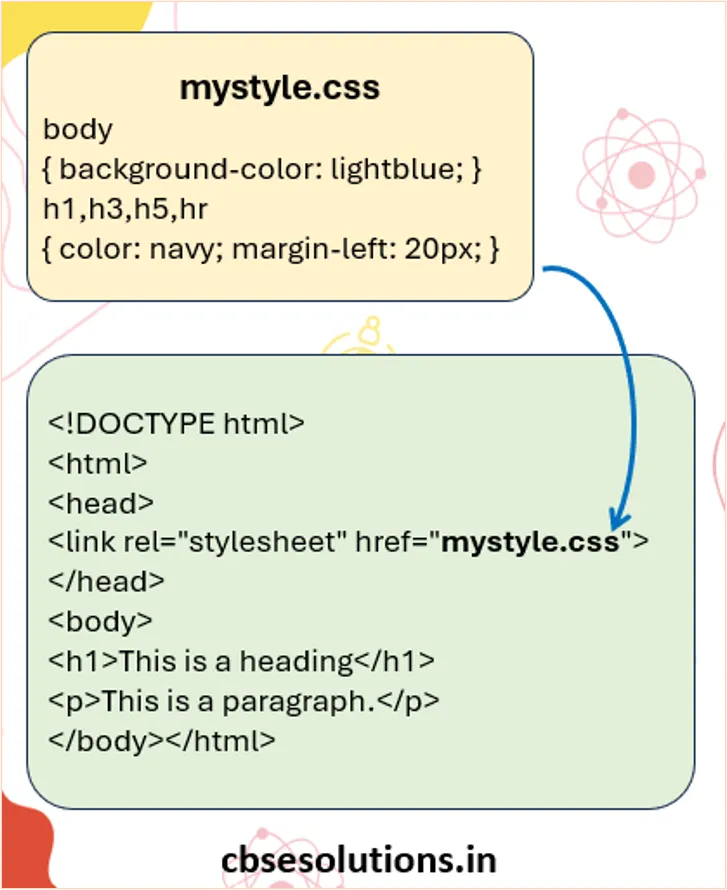
External CSS
- CSS rules are written in a separate .css file and linked to the HTML document using the <link> tag inside <head>.
- It is useful when the same style is required on multiple webpages.
Example:
Internal CSS
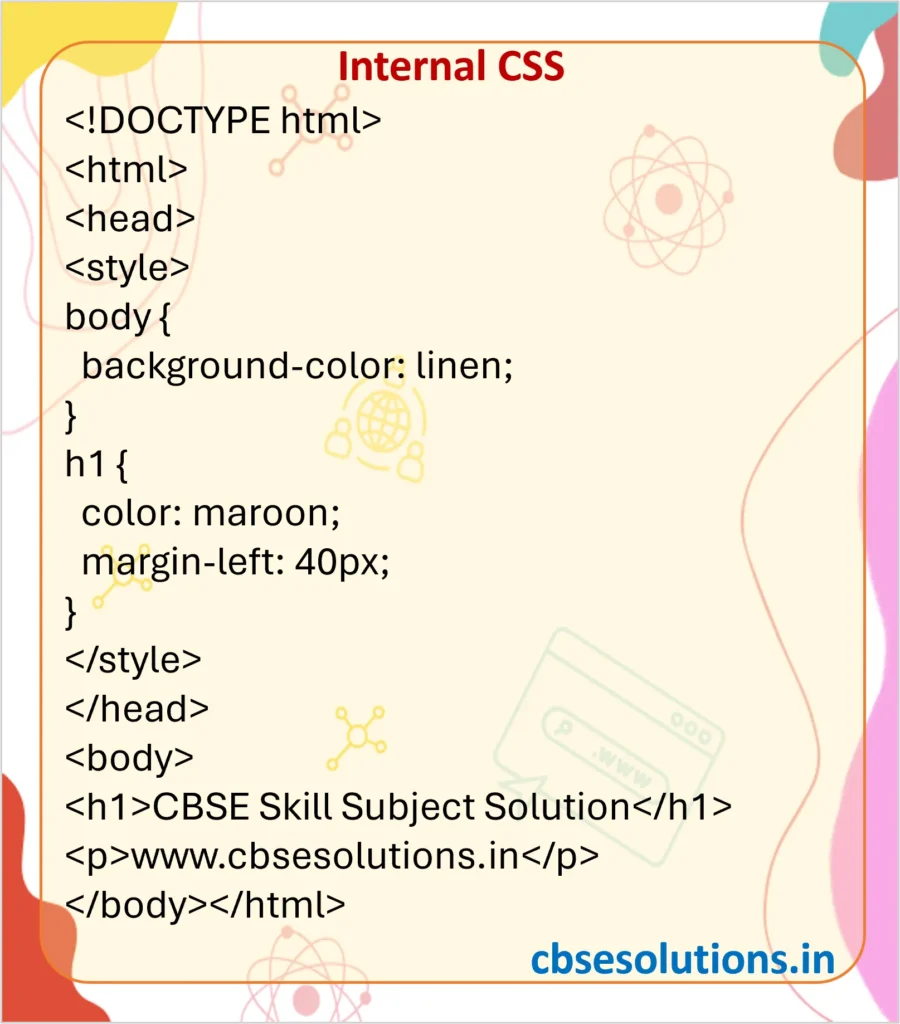
- CSS rules are written inside the <style> tag within the <head> section of an HTML page.
- It is useful when a single webpage needs a unique style.
Example:
Inline CSS
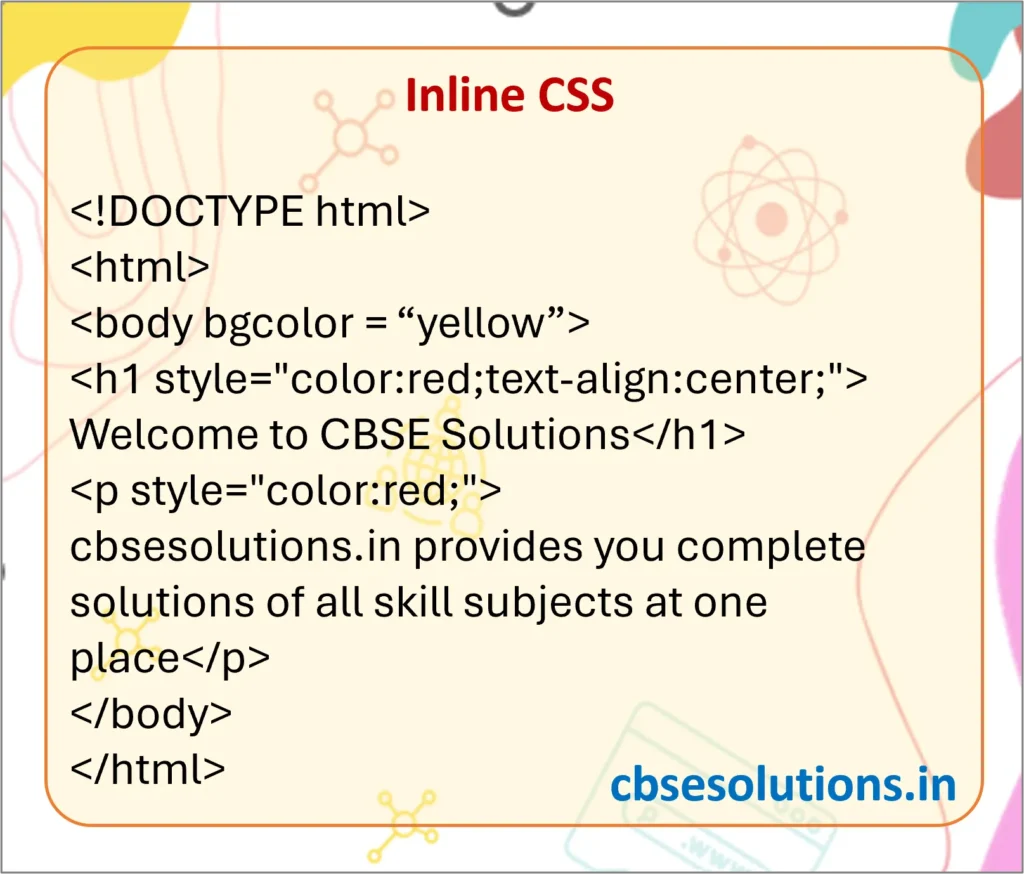
- CSS is applied directly to an HTML element using the style attribute.
- It is useful when a specific element needs a particular style.
Example:
Multiple Style Sheets – Priority of CSS
When multiple styles are applied to the same element, the priority is:
Inline CSS > Internal/External CSS > Browser Default
- Inline CSS has the highest priority and overrides other styles.
- Between internal and external CSS, the style that appears later is applied.
The CSS Box Model Using Div
- The CSS box model is a box that wraps around every HTML element, consisting of:
- Content – where text and images appear.
- Padding – a transparent area that clears space around the content.
- Border – goes around the padding and content.
- Margin – a transparent area that clears space outside the border.
- Implemented in CSS by defining properties of the <div> tag inside the <style> element:
div {
width: 320px;
padding: 10px;
border: 5px solid gray;
margin: 0px;
}
- The box model helps to add borders and control the space around elements.
- The total width and height of an element depend on its content size, padding, border, and margin.
CSS Syntax and Tags
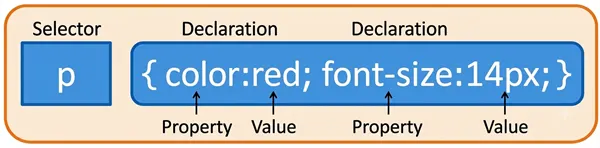
- A CSS rule consists of a selector and a declaration block.
- The selector specifies the HTML element that you want to style, such as h1, p, or div.
- The declaration block contains one or more CSS declarations written inside curly braces { }.
- Each CSS declaration consists of a property and its value, separated by a colon :.
- Multiple declarations are separated using a semicolon ;.
CSS Comments
- CSS comments are used to explain or add notes in the CSS code and help when the code is edited later.
- Browsers ignore CSS comments, so they do not affect the appearance of the webpage.
- A CSS comment starts with /* and ends with */.
- CSS supports single-line and multi-line comments, and comments can also be written on the same line as CSS declarations.
Example:
/* This is a CSS comment */
p {
color: blue; /* Text color */
}
Commonly Used CSS Properties
Text Properties
- text-align – Sets the horizontal alignment of text as left, right, center, or justify.
- color – Sets the color of the text.
- text-indent – Sets the indentation of the first line of text.
- text-transform – Changes text to uppercase or lowercase.
- line-height – Sets the space between lines of text.
- letter-spacing – Sets the space between individual letters.
- word-spacing – Sets the space between words.
List Properties
- list-style-image – Uses an image as the marker for list items.
- list-style-type – Specifies the type of marker used for list items.
Table Properties
- border – Specifies the border around a table or its cells.
- width – Sets the width of a table or element.
- text-align – Sets the horizontal alignment of text in table cells.
- vertical-align – Sets the vertical alignment of text in table cells.
- height – Sets the height of a table cell.
- padding – Controls the space between the cell content and its border.
CSS Colors
- Colors can be specified in three ways:
- As RGB values – rgb(RED, GREEN, BLUE), each parameter ranging from 0 to 255. Example: rgb(255,0,0) is Red, rgb(0,255,0) is Green, rgb(0,0,255) is Blue.
- As Hexadecimal values – format #RRGGBB, where RR, GG, BB are hex integers from 00 to FF. Example: #FF0000 is Red, #00FF00 is Green, #0000FF is Blue.
- By color names – modern browsers support 140 standard color names (e.g., AliceBlue, Aqua, Black, Blue, Brown).