Class 12 ICT Skills Notes | CBSE Employability Skills Quick Revision
Class 12 ICT Skills Notes | Quick Revision Guide
Scoring full marks in ICT Skills is easier than you think — here’s how!
These Class 12 ICT Skills Notes are Comprehensively prepared by experienced teachers. The notes are written in simple and clear language, making it easy for you to understand and remember each concept. You learn all key ICT topics like Spreadsheets, Basic Operations in Spreadsheets, Working with Data, Sorting & Filtering, Presentation Software, Working with Slides, Formatting presentation etc.
So don’t wait — Revise Class 12 ICT Skills Notes quickly! Easy notes and key concepts to score full marks in exam. Designed as per latest CBSE Employability Skills syllabus. 😊
Session 1: Getting Started with Spreadsheet
What is a Spreadsheet?
- An electronic document containing rows and columns (cells).
- Used to store, organize, and calculate data. For Example: Budgeting, Inventories, Marksheets, Charts, Data Analysis etc.
- Each cell is identified by a cell address (like A1, B2).
Common Spreadsheet Software | types of spreadsheets
- Microsoft Excel
- LibreOffice Calc
- Google Sheets
Steps to Start LibreOffice Calc
- Search “LibreOffice Calc” in Windows search bar.
- Click to open → a blank spreadsheet appears → Start entering data.
Components of a Spreadsheet

Class 12 ICT Skills Notes | CBSE Employability Skills Quick Revision
Session 2: Performing Basic Operations in a Spreadsheet
Entering Data
- Click a cell → type text or number → press Enter.
- By default, Text are left-aligned | Numbers are right-aligned.
- Start formulas with ‘=’ (e.g., =A1+B1).
Types of Data
- Text – words or labels (e.g., “Wheat”).
- Numbers – quantities or prices.
- Formulas – perform calculations.
- Can also insert images, audio, or shapes.
Editing Data
You can modify or correct data using these methods:
- Method-1: Click on the cell and type again to replace data.
- Method-2: Double-click the cell or use Formula Bar to edit text.
- Method-3: Press Delete to remove content from the cell.
Deleting Data
- Select the cell → Press Delete key → clears data.
Selecting Multiple Cells
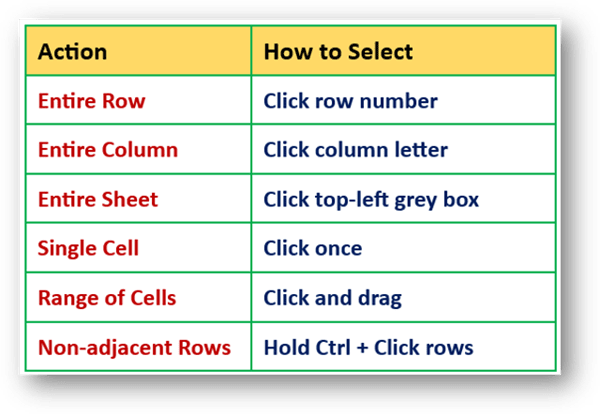
Saving, Opening & Closing Files
- Save As: File → Save As → type filename → Save.
- Open: File → Open → select file → Open.
- Close: File → Close.
Remember: Extension of Libre Office Calc spreadsheet by default is .ods
ICT Skills Notes Class 12 | Notes of Class 12 ICT Skills
Printing Spreadsheet
- File → Print OR Press Ctrl + P
- Select printer name → select range of pages → select number of copies → OK
Session 3: Working with Data and Formatting Text
Ways to perform calculations:
1. Add Values Directly
- Type =73+89+78 → Enter → Result shown.
2. Use Cell Addresses
- =B2+C2+D2 → auto-updates if data changes.
3. Select Cells with Mouse
- Type = → Click cell → + → Click next cell → Enter.
4. Use Function (For exp SUM())
- Type =SUM(B2:D2) → Press Enter → Calculates total.
Copying & Moving Formulas
- After writing one formula, it can be used for other rows easily.
- Copy (Ctrl+C) or Cut (Ctrl+X) the cell with formula.
- Paste (Ctrl+V) into the next cell.
- Cell references change automatically (called relative referencing).
Formatting Cells & Text
Change Font Style/Size
- Select text → Choose font & size from toolbar.
Align Text
- Use toolbar icons to Left, Center, or Right align.
Highlight Text
Class 12 ICT Skills Notes | CBSE Employability Skills Notes
Why Formatting is Important
- Makes spreadsheet neat, readable, and professional.
- Highlights important data clearly.
- Improves the presentation of spreadsheet reports.
Session 4: Advanced Features in Spreadsheet
Sorting Data
- Sorting means arranging data in a specific order (alphabetical or numerical).
- Steps:
- Select data range → Click Data → Sort → Choose the column (e.g., Total Marks) and order (Ascending or Descending) → Click OK
- Use example: Helps find top scorers, lowest marks, etc.
Filtering Data
- Used to display only specific data while hiding others.
Steps to Apply Filter:
- Click on AutoFilter icon → Drop-down arrows appear in column headers.
- Choose column (e.g., Class) → Uncheck unwanted items (e.g., XII-B) → Click OK.
Protecting Spreadsheet with Password
- Method 1: Protect Spreadsheet Option
- Click Tools → Protect Spreadsheet → Enter and confirm password.
- Method 2: Save As with Password
- Click File → Save As → Save with password → Enter password in both boxes → OK..
Session 5: Presentation Software
Introduction
- Presentation software is widely used to create digital presentations with slides.
- Helps in explaining concepts effectively using visuals.
Advantages of Digital Presentations
- More interesting with images, videos, animation, and music.
- Easy to edit and update.
- Can be projected to a large audience.
- Can be printed and distributed to viewers.
Popular Presentation Software
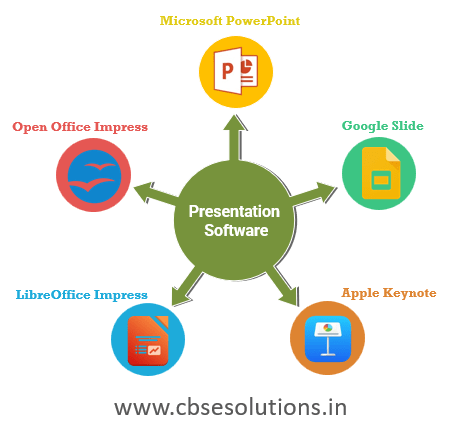
(All have similar features; LibreOffice Impress is free and open-source.)
CBSE ICT Skills Notes of Class 12
Steps to Start LibreOffice Impress
- Type LibreOffice Impress in search bar → Select it from search result → Cancel “Select Template” → Blank presentation opens.
Adding Text to a Presentation
- By default, first slide has two text boxes: Title (Top box), Content (Lower box)
- You can click and type in the boxes to add text.
Session 6: Opening, Closing, Saving & Printing a Presentation
Steps to Save a Presentation
- Click File → Save As →Choose a folder (e.g., Desktop) → Enter a File name (default is “Untitled#”) → Click Save.
Steps to Close a Presentation
- Click File → Close. (Choose Save / Don’t Save / Cancel if prompted)
Steps to Open a Presentation
- Open LibreOffice Impress → Click File → Open → Browse and select the file → Click Open to load it.
Steps to Print a Presentation
- Ensure printer is connected → File → Print or press Ctrl + P
- In the Print dialog box, choose printer and number of copies.
- Select All (for all slides) or Slides (for specific slides) → Click OK to print.
ICT Skills Notes Class 12 | ICT Skills important Notes for quick revision
Session 7: Working with Slides and Text
Adding a New Slide
- Click Slide → New Slide or press Ctrl + M
Deleting Slides
- Select the slide → Click Slide → Delete Slide or press Del key.
Text Formatting Options
- Font style: Change from Font Style drop-down.
- Font size: Choose suitable size (e.g., 8, 12, 14, 22). Change from Properties tab.
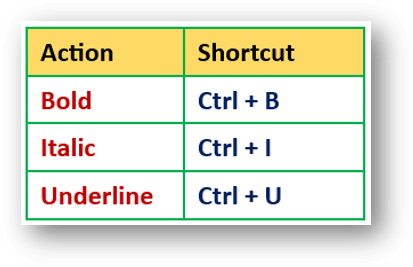
- Highlighting: Bold, Italic, Underline, Strikethrough from Properties tab.
- Text Alignment: Left, Right, Center, Justify using Paragraph options.
- Text Color: Choose from Font Color drop-down.
- Use Highlight Color to change background color of text.
Session 8: Advanced Features Used in Presentation
Inserting Shapes
- Click Insert → Shape → (Select type: Arrow, Circle, etc.).
- Use Properties tab to change color, size, position, direction.
Inserting Clipart and Images
- Click Insert → Image → “Insert Image” dialog box opens → Browse and select image file → Click Open to insert image in slide.
Changing Slide Layout
- Layout helps to arrange the slide content in an organised way.
- You can change layout from Layouts tab as needed.
Important Shortcuts
| Action | Shortcut |
| Save | Ctrl + S |
| New Slide | Ctrl + M |
| Ctrl + P | |
| Delete Slide | Del |
| Bold | Ctrl + B |
| Italic | Ctrl + I |
| Underline | Ctrl + U |
Class 12 ICT Skills Notes – FAQ
Q1. What is ICT Skills in Class 12 CBSE?
ICT Skills ka full form hai- Information and Communication Technology. ICT Skills of Class 12 mainly following points pe focus karta hai-
1. Digital tools ka use kaise kare
2. apne work ko IT technology ki help se easily kaise kare
3. Internet technology ka use effectively kaise kare
4. Different software applications ko use karke kaise apni problem solve kare
Q2. Are these Class 12 ICT Skills notes based on the latest CBSE syllabus?
Yes, ICT Skills Class 12 ke notes latest CBSE syllabus pe based hai.
Q3. How many marks are allocated to ICT Skills in Class 12 CBSE board exam?
Exact marks har saal ke exam pattern par depend karte hain, lekin ICT skills class 12 se generally 2-3 marks ke questions hote hai.
Q4. What topics are included in Class 12 ICT Skills Notes?
ICT Skills Notes of class 12 me CBSE Employability Skills ke syllabus ke according sabhi topics such as – Spreadsheet, calculations in spreadsheet, sorting and filtering, protecting spreadsheet, Presentation software, working with slides and text, shapes in presentation etc. included hai.
Q5. Are Class 12 ICT Skills Notes enough to score well in exams?
Yes, Ye notes aapko ICT skills of class 12 ki complete understanding dete hai, aur app high score kar sakte hai. But best results ke liye aapko MCQs, Sample Papers, and PYQs ko bhi revise karna chahiye. Aapko class 12 ICT skills ke sabhi study material, sample papers, MCQs, PYQs, textbook solutions meri isi website cbsesolutions.in me mil jayenge.
Q6. Can Class 12 ICT Skills notes help in revision before exams?
Yes, Definitely.
Q7. How should students revise ICT Skills efficiently before exams?
Students ko ICT Skills Notes of Class 12 ko revise karna chahiye. iske liye students ko following points pe focus karna chahiye:
1. Core definition
2. Steps invloved in different functions and operations
3. Shortcut keys for different actions
4. Practice with questions
Class 10 Employability Skills – Student’s Common Questions
Are Employability Skills important for the CBSE Class 12 board exam?
Yes, Agar aapne CBSE Skill subjects (like – IT, AI, Data Science, Financial Market etc) opt kiya hai, to Employability Skills CBSE Class 10 board exam ke liye important hai.
How many marks are allotted to Employability Skills in CBSE Class 12?
Employability Skills ka weightage total theory marks ka 20% hota hai. Jaise, agar theory paper 50 marks ka hai, to usme 10 marks Employability Skills ke hote hain.
What topics are included in CBSE Class 12 Employability Skills?
CBSE Class 12 Employability Skills me 5 main topics or units hai – Communication Skills, Self-Management Skills, ICT Skills, Entrepreneurship Skills, and Green Skills. In sabhi topics ke complete notes, mcqs, pyqs, sample papers, textbook solutions aapko hamari isi website ‘cbsesolutions.in’ me available hai.
Where can I find Class 12 Employability Skills Notes, MCQs, PYQs, and Sample Papers?
Aapko class 12 employability skills ke sabhi topics(units) ke complete Notes, MCQs, PYQs, and Sample Papers hamari isi website ‘cbsesolutions.in’ me mil jayenge. aap inhe upar navigation menu me jakar ya is post ke neech diye hue link me click kar prapt sakte hai.
Are these Employability Skills study materials based on the latest CBSE Class 10 syllabus?
Yes
Disclaimer
This content is created for educational purposes only and is prepared using the CBSE-suggested syllabus, NCERT textbooks, sample papers, and publicly available resources. While every effort and care has been made to ensure accuracy, errors may still occur; therefore, no guarantee is given regarding completeness or correctness. Students are advised to cross-check important information with official CBSE notifications, textbooks, or teachers. The author is not responsible for any inaccuracy, omission or outcomes arising from the use of this content.
For any suggestions or error reporting, Please comment below or email us at [my email address] so that we can improve the quality and accuracy of the content.