ICT Skills Important Questions Class 12 and Answers

ICT Skills Important Questions Class 12 and Answers | CBSE Employability Skills
Not sure which ICT Skills questions are important for Class 12?
This ICT Skills Important Questions Class 12 and Answers guide covers Most expetected, commonly asked, competency-based Q&A to help you prepare for CBSE Boards.
🟩 Short Answer Questions (1–2 Marks) | Class 12 ICT Skills
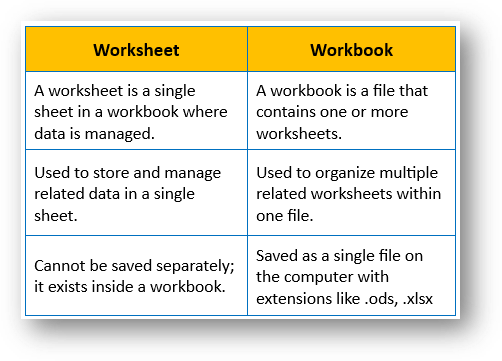
Q1. What is the difference between a worksheet and a workbook?
Q2. What is a cell? Explain cell address with an example.
👉 Cell is intersection of single row and column. It is the smallest unit of a worksheet where data is entered and edited. Each cell has a unique address represented by the column letter and row number. For example, C7 refers to the cell in column C and row 7.
Q3. What are the different types of data that can be entered in a spreadsheet?
👉 following are the different types of data that can be entered in a spreadsheet:
❇️ Text – words or labels (e.g., “Wheat”).
❇️ Numbers – quantities or prices.
❇️ Formulas – perform calculations.
We can also insert images, audio, or shapes.
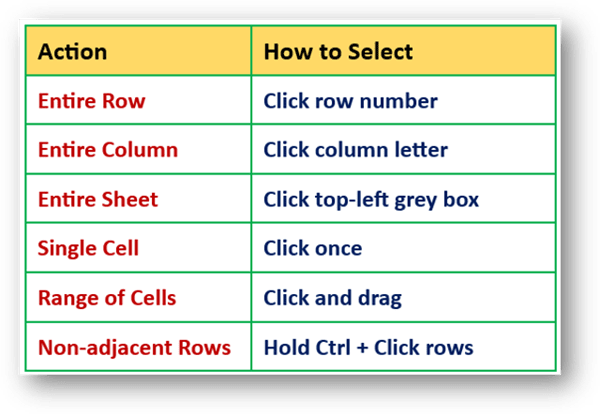
Q4. Explain any three methods of selecting cells in a spreadsheet.
Q5. What is the use of the SUM() function? Give an example.
👉 The SUM() function is used to add numbers in a selected range of cells. For example:
If quantities are entered in cells C2 to C8, then the formula =SUM(C2:C8) adds all quantities automatically and shows the total. It saves time compared to manual addition.
Q6. Explain the steps to save and open a spreadsheet in LibreOffice Calc.
👉 To Save: File → Save As → type filename → Save.
👉 To Open: File → Open → select file → Open.
📍 Note: The default file format in Calc is .ods. You can also save it as .xls for Excel users.
Q7. What do you mean by formatting in a spreadsheet? Mention any three formatting features.
👉 Formatting means changing and enhancing the appearance of data in a spreadsheet to make it more presentable, readable, and professional. Any three formatting features are given below:
🅰️ Change Font Style/Size – Adjust font style, font size, font colors.
🧭 Align Text – Align data left, right, or center.
✴️ Highlight Text – Bold/Italic/Underline
ICT Skills Important Questions Class 12 and Answers | Employability Skills Unit 3 Questions
Q8. What is the purpose of sorting data in a spreadsheet?
👉 Sorting means arranging data in a specific order (alphabetical or numerical) — either ascending or descending. It helps to view and analyse data quickly.
For example – a teacher can sort students’ percentage in descending order to identify toppers.
Q9. How is filtering useful in managing large data?
👉 Filtering helps display only the essential data while hiding non-essential data. For example – in a class records, using the AutoFilter tool, a teacher can view data of only “X” students. It saves time and avoids confusion.
Q10. What is spreadsheet protection and why is it needed?
👉 Spreadsheet protection prevents from unauthorized editing or changing data. By setting a password, only authenticated users can modify data. Spreadsheet protection ensures the security and integrity of sensitive information like financial reports or student marks.
Q11. Explain the steps to protect a spreadsheet with a password.
- Go to Tools → Protect Spreadsheet.
- Enter and confirm a password.`
- Save and close the file.
Q12. Explain the use of the SUM() function with example.
👉 The SUM() function helps in adding the numbers in separate cells or in a cell range. For example, if marks are entered in cells D1:D5, the formula =SUM(D1:D5) will display the total. It makes addition simple, quick and accurate without entering individual numbers.
🟦 Long Answer Questions (3–5 Marks) | Class 12 ICT Skills
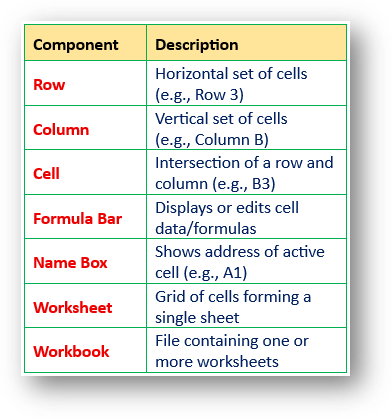
Q1. Explain the components of a spreadsheet window.
👉 The main components of a spreadsheet window are:
Q2. Describe the steps to perform basic operations like addition, subtraction, multiplication, and division in a spreadsheet.
👉 You can perform calculations in following ways:
1. 🔹Add Values Directly:
Type =73+89+78 → Enter → Result shown.
2. 🔹Use Cell Addresses:
=B2+C2+D2 → auto-updates if data changes.
3. 🔹Select Cells with Mouse:
Type = → Click cell → + → Click next cell → Enter.
4. 🔹Use Function (For exp SUM()):
Type =SUM(B2:D2) → Press Enter → Calculates total.
ICT Skills Important Questions Class 12 | CBSE Employability Skills Questions
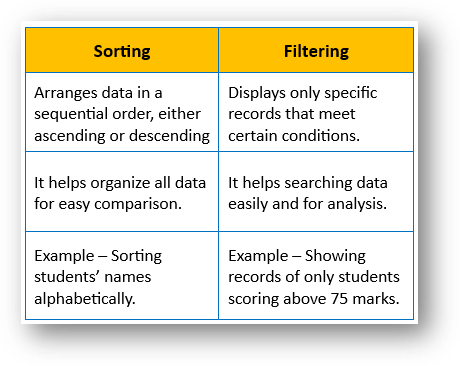
Q3. Differentiate between sorting and filtering data with examples.
Q4. Explain the importance of spreadsheets in everyday life and office work.
👉 A spreadsheet is an electronic document that stores data in rows and columns (cells). It is an important software application that helps in storing, organizing, and analysing data. Each cell can contain text, numbers, or formulas. Uses of spreadsheet are: Budgeting, marks calculation, charts, data analysis etc.
Thus, spreadsheets are widely used in schools, offices, banks, and businesses for maintaining records and analysing data efficiently.
Q5. What is spreadsheet protection? Write steps and importance.
👉 Spreadsheet protection prevents from unauthorized editing or changing data. By setting a password, only authenticated users can modify data. Spreadsheet protection ensures the security and integrity of sensitive information like financial reports or student marks.
⛔️Steps to protect a spreadsheet with a password:
1. → Go to Tools
2. → Protect Spreadsheet.
3. → Enter and confirm a password.
4. → Save and close the file.
Q6. Describe the process of sorting and filtering student data.
🔃 Sorting data:
1. → Select data range
2. → Click Data → Sort
3. → Choose the column and order
3. → Click OK
🔎 Filtering data:
1. → Click on AutoFilter icon
2. → Drop-down arrows appear in column headers
3. → Choose column
4. → Uncheck unwanted items
5. → Click OK
CBSE Class 12 Employability Skills Unit 3 Questions | Class 12 ICT Skills Questions
🟨 Competency Based Questions (1-2 Marks)
Q1. A teacher records marks of students in a spreadsheet with columns – Name, English, Math, Science, and Total Marks. Explain how the teacher can calculate total marks, arrange students from highest to lowest?
❇️ The teacher can calculate total marks using the formula =SUM(B2:D2) and copy it down.
❇️ To arrange students, use Data → Sort → Descending Order on the Total Marks column.
Q2. A shopkeeper maintains daily sales data for different products. How can he analyse sales of one specific product and protect the sheet from being changed by others?
❇️ He can apply AutoFilter on the Product column and select the desired product to view its sales only.
❇️ To prevent others from editing, use Tools → Protect Spreadsheet, set a password, and save the file.
Q3. A student is preparing a household budget using LibreOffice Calc. Suggest how the student can use spreadsheet features to make the budget effective and easy to read.
❇️ The student can use formulas like SUM() to calculate total expenses.
❇️ Data can be formatted using font styles, text alignments, row/column widths adjustments etc.
❇️ Sorting can be used to arrange expenses category-wise.
❇️ Saving and password protecting the file ensures safety and easy updates.
🟧 Case Based Qustions (4-5 Marks)
Case 1:
Ms. Gupta maintains a spreadsheet with columns – Name, Class, English, Maths, Science, and Total Marks.
She wants to find top scorers and display only students of Class XII-A.
Based on this answer the following questions:
Q1. Which spreadsheet feature should Ms. Gupta use to arrange students by total marks?
👉 Sorting (Descending Order)
Q2. Which function can be used to calculate total marks quickly?
👉 SUM() function
Q3. Which tool helps her view only students of Class XII-A?
👉 AutoFilter tool
Q4. What are the steps to apply AutoFilter?
👉 Click the AutoFilter icon → select Class XII-A from the drop-down list.
Q5. How can she protect the file so that others can’t edit it?
👉 Select Tools → Protect Spreadsheet and set a password.