Computer Organization Notes – Class 11 IT (802) | Quick Revision
Get the best Computer Organization Notes of Class 11 IT (802) with simplified explanations, pointwise concepts, easy to understand, and exam-oriented revision material to score high in CBSE exams.
Session-1: Fundamentals of Computer
What is Computer System
- The term computer comes from the word “compute”, which means to calculate.
- A computer is an electronic device that:
- Takes input from the user
- Processes it according to instructions
- Produces output
- It works based on a set of predefined instructions.
Evolution of Computers
- The growth of the computer industry started with the need for fast calculations.
- Manual computing methods were slow and error-prone.
- To overcome this, faster calculating devices were developed.
- The journey began with the Abacus, the first calculating device.
- Over time, computing devices evolved into highly advanced and extremely fast machines.
Computer and Binary Language
- A computer is an electronic device that works on electronic signals.
- These signals are represented using: 0 (OFF state) and 1 (ON state)
- This system is called Binary Language or Machine Language.
Characteristics of a Computer
- Speed: Computers process data and instructions at very high speed. A high-speed computer can perform about 3–4 MIPS (Million Instructions Per Second).
- Versatility: Computers can perform different types of tasks easily such as calculations, documentation, presentations, games, database management, and communication.
- Accuracy: Computers produce highly precise and correct output. Errors usually occur due to human input, not machine processing.
- Diligence: Computers can perform repetitive tasks continuously without losing efficiency or accuracy.
- Memory: Computers have the ability to store data temporarily or permanently, and it is one of the most important features of a computer.
- Intelligence: Earlier computers were not intelligent and only followed instructions. Modern computers using AI can make decisions and improve their performance through self-adjustment.
Components of a Computer
- A computer is made up of two main parts: hardware and software.
- Hardware refers to the physical parts of a computer that we can touch, such as the motherboard, memory devices, monitor, keyboard, mouse, etc.
- Software refers to the set of programs or instructions that tell the computer what to do.
- Both hardware and software work together to make a computer system function properly.
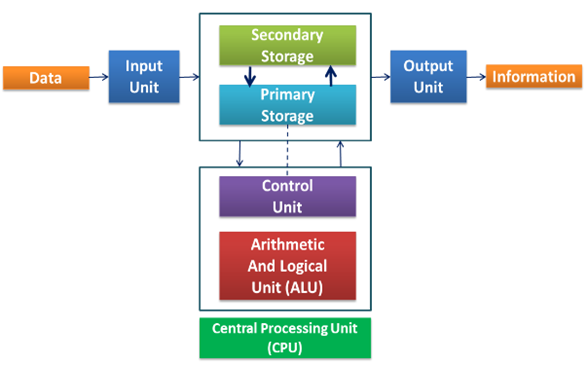
- Every task is performed by computer follows IPO cycle: Input → Process → Output.
Input
Data and instructions are given to the computer using input devices like a keyboard or mouse. A set of instructions given to the computer is called a program.
Storage/Memory
- The data and instructions are stored temporarily or permanently during processing.
- Computer Storage is mainly of two types:
- Primary Memory
- Secondary Memory
Primary Memory
- Primary memory is the memory that is directly accessible by the CPU.
- The data and instructions received from input devices are stored in this memory during processing.
- It is also called main memory or working memory.
- Primary Memory is of two types:
- RAM (Random Access Memory)
- ROM (Read Only Memory)
RAM (Random Access Memory)
- RAM is a volatile memory, which means its data is lost when the power is turned off.
- Used for storing data and instructions currently in use
- Faster access compared to secondary storage
Types of RAM:
| DRAM | SRAM |
| Dynamic RAM | Static RAM |
| Used in main memory | Used in cache memory |
| Less expensive | Expensive |
| Less power consumption | More power consumption |
| Slower | Faster |
ROM (Read Only Memory)
- ROM is a non-volatile memory, which means its data is not lost when the power is turned off.
- Mainly used during the startup (booting) process of a computer
- Stores permanent instructions
Types of ROM:
- ROM – Basic fixed memory
- PROM (Programmable Read Only Memory) – Can be programmed once
- EPROM (Erasable Programmable Read Only Memory) – Can be erased using UV light and reprogrammed
- EEPROM (Electrically Erasable Programmable Read Only Memory) – Can be erased and rewritten electrically
Secondary Storage
- Secondary storage is the memory that is external to the computer system. It is used to store data and programs permanently.
- It is not directly connected to the CPU.
- Examples of Secondary Storage: Magnetic tapes, Hard disk, CD/DVD (CD-ROM), Pen drive
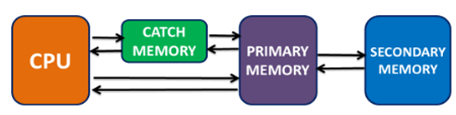
Cache Memory
- Cache memory is a very high-speed memory used to increase the speed of the CPU.
- It is placed between the CPU and main memory (RAM).
- It acts as a buffer between CPU and RAM.
- It reduces the average time required to access data from main memory.
- It is faster but more expensive than primary memory.
Processing
- The input provided by the user is processed by the Central Processing Unit (CPU)
- The result of this processing is then either sent to the output devices or stored in a memory location for future use.
Control Unit (CU)
- The Control Unit manages and coordinates all activities of the computer.
- It controls input, processing, and output operations.
Arithmetic Logic Unit (ALU)
- The ALU performs all mathematical and logical operations.
- Performs arithmetic operations like addition, subtraction, etc.
- Performs logical comparisons (>, <, =, etc.)
Output Unit
- The output unit displays the final result of processing.
- It shows results on devices like monitor, printer, speakers, etc.
Block Diagram of Computer
Session-2: Components of Computer
Motherboard
- Main circuit board of computer.
- Connects all components: CPU, Memory, Hard Disk, Ports (USB, PS2), Expansion cards
- Acts as backbone of system
Input Devices
- Keyboard – text input
- Mouse – pointing device
- Webcam – image/video capture
- Scanner – converts documents to digital form (soft copy)
- Microphone – audio input
Output Devices
- Monitor/VDU – standard display screen
- Speaker – sound output
- Printer – produces printed documents/images
- Plotter – large-scale prints (maps/designs)
- Projector – displays enlarged output for audience
CPU (Central Processing Unit)
- The CPU (Central Processing Unit) is the main processor of the computer and is located on the motherboard.
- It is mainly responsible for the overall performance and speed of the computer.
- Processors can be classified based on:
- Technology (Dual-core, Quad-core, Octa-core, etc.)
- Manufacturer (such as Intel and AMD)
Speed of processors is usually measured in megahertz (MHz) – millions of instructions per second; and gigahertz (GHz) – billions of instructions per second, is indicative of its power.
Power Supply Unit (SMPS)
- The Power Supply Unit provides electrical power to all parts of the system.
- It converts AC (Alternating Current) from home or office supply into DC (Direct Current).
Random Access Memory (RAM)
- RAM is a very important part of a computer system that affects its performance.
- When the computer starts, the operating system is loaded into RAM.
- Any program that is currently running must also be loaded into RAM.
- RAM provides temporary storage for active programs and data.
- Modern computers usually have 8 GB to 32 GB RAM or more.
Hard Disk (HD)
- The hard disk is a secondary storage device used for permanent data storage.
- It stores all data, including files saved in the C drive.
- Programs are first stored on the hard disk and then transferred to RAM for execution.
- Capacity of a hard disk is expressed in terms of Gigabytes, Terabytes.
Pen Drive / Flash Drive
- It is a small pen-like storage device and very compact in size.
- It can be accessed by directly inserting in the USB(Universal Serial Bus) Port.
- It is widely used due to its small size, portability, and easy accessibility.
Memory Units
- Data stored in binary (0s and 1s)
- 1 Nibble = 4 bits
- 1 Byte = 8 bits
- 1024 Bytes = 1 KB
- 1024 KB = 1 MB
- 1024 MB = 1 GB
- 1024 GB = 1 TB
- 1024 TB = 1 PB
- 1024 PB = 1 EB
- 1024 EB = 1 ZB
- 1024 ZB = 1 YB
Optical Storage Devices
- CD (Compact Disc)
- DVD (Digital Video Disc)
- DVD has higher storage capacity than CD
- Accessed using disc drive
Session-3: Operating System
Operating System
- An operating system (OS) is system software that acts as an interface between the user and computer hardware.
- It helps the computer communicate between hardware and software components.
- It manages and controls the overall functioning of the computer system.
- Some popular operating systems are: Windows, Linux, Unix, MS-DOS, Solaris, and macOS.
- It performs important tasks such as:
- Accepting input from input devices
- Displaying output on screen or other devices
- Managing files and folders
- Controlling hardware devices
- Installing and uninstalling peripheral devices
- Ensuring smooth coordination between all components
Functions of Operating System
Communication Manager
- Manages communication with hardware devices
- Uses device drivers
Resource Management
- Allocates resources like CPU, memory, files, I/O devices
Process Management
- Controls execution of processes
- Decides process scheduling
Memory Management
- Allocates and frees memory for processes
File Management
- Manages files and folders
- Includes create, delete, copy, move, rename
Types of Operating System
- Single-tasking OS: Runs only one program at a time
- Multi-tasking OS: Runs multiple programs simultaneously
- Single-user OS: Supports one user at a time (desktop systems)
- Multi-user OS: Supports multiple users simultaneously
- Real-time OS: Responds within strict time limit, Used in critical systems (e.g., missile systems)
- Batch Processing OS: Processes data in batches, Reduces setup time for similar tasks
Session-4: Troubleshooting and Utilities
Common Troubleshooting Steps
- Close unused programs
- Check hardware cables and connections
- Ensure devices are powered ON
- Repeat steps before issue occurred
- Press F1 for Help window
- Record error messages
- Restart device/system if needed
Hardware Troubleshooting
Monitor Not Displaying
- Check sleep mode
- Check power and cable connections
- Charge laptop battery if needed
Keyboard Issues
- Check connection
- Check physical damage
- Replace batteries (wireless)
- Clean stuck keys
Mouse Issues
- Check connection
- Inspect damage
- Restart wireless mouse
- Clean mouse surface
Printer Problems
- Check power and connection
- Load paper
- Fix paper jam
- Replace ink cartridge
- Install correct driver
- Check network/IP communication
Print sent to wrong printer
- Change default printer via:
- Control Panel → Devices and Printers
- Set correct printer as default
Printer slow
- Reduce print quality
- Use Fast Draft mode
Sound Troubleshooting
- Check volume level
- Check media player settings
- Verify cable connections
- Test with headphones
- If headphones work → speaker issue
Software Troubleshooting
Application Slow – Check for updates
Application Frozen
- Forcefully End the Application by opening task manager by pressing Ctrl+Alt+Delete
- End task and restart
- Restart system if needed
- Perform hard reboot if required (may cause data loss)
- Run antivirus scan
Utilities
Utilities are the special programs that help computer systems to work more smoothly, efficiently and effectively. Utility software programs help in:
- improving the performance of computer
- provide security from virus,
- manage disk space
- free disk space on hard Disk – provide backup etc.
Disk Cleanup
We can use Disk Cleanup utility to get some more space for smooth functioning of computer as sometimes due to non-availability of free space slows the functioning of the computer. There should be at least 200-500MB of free hard drive space on your system.
- Right click C drive → Properties → Disk Cleanup
- Remove system files
- Delete temporary files
Empty Recycle Bin
- Right click → Empty Recycle Bin
Remove Temporary Files
- Use Disk Cleanup tool
- Delete temporary internet files
Disk Defragmentation
- Optimizes file storage
- Reduces gaps in disk
- Improves system speed
- Steps:
- Open C drive → Properties → Tools → Optimize → Select drive → Optimize
Networking Troubleshooting
No Internet Connection
- Check network icon status
- Use Network & Sharing Center → Troubleshoot
Check IP Address
- Open CMD Prompt → Type: IPCONFIG → Shows IP details if connected
Network Cable Issue (Fly Lead)
- Check cable connection
- Seek network administrator help
Network Card Issue
- Check indicator lights
- Replace if damaged
![DBMS Notes Class 10 IT Code 402 [Exam Focused]](https://cbsesolutions.in/wp-content/uploads/2026/04/database-management-system-notes-class-10.webp)
![Digital Documentation Notes – Class 10 IT 402 [Quick Revision]](https://cbsesolutions.in/wp-content/uploads/2026/04/class-10-digital-documentation-notes.webp)