Networking and Internet Notes – Class 11 IT(802) | Quick Revision
Class 11 IT (802) Networking and Internet quick revision notes designed for fast and effective exam preparation. This concise, exam-focused Network and Internet notes of Class 11 IT covers all important concepts including basics of computer networking, internet services and terminologies, Cyber Crime, Cyber Safety, and key terms in a simple and easy-to-understand format. Perfect for last-minute revision, it helps students quickly recall concepts, strengthen understanding, and improve performance in exams with minimal effort and maximum clarity.
Evolution of Networks and Internet
- In 1876, Alexander Graham Bell introduced communication through telephone lines, which led to the development of Public Switched Telephone Network (PSTN) in 1877.
- During the late 1950s, military communications used telephone networks with circuit switching, where a dedicated path was established between two users.
- Later, packet switching was introduced by Paul Baran, Donald Davies, and Len Kleinrock. In this method, data is divided into small packets and sent separately, making communication faster and more efficient.
- In 1969, the US Department of Defense developed ARPANET, the first major computer network.
- In 1970, TCP/IP protocol was developed to enable communication between different networks.
- In 1984, NSFNET was introduced for research and education purposes.
- The interconnection of multiple networks like ARPANET and NSFNET resulted in the formation of the Internet, which is known as a “network of networks.”
Who Governs the Internet
- Internet is a decentralized system, which means there is no single central authority controlling the entire Internet.
- The Internet Engineering Task Force (IETF) is responsible for developing and standardizing core Internet protocols such as IPv4 and IPv6.
- The Internet Corporation for Assigned Names and Numbers (ICANN) manage important Internet resources like:
- Domain names (e.g., google.com)
- IP addresses
- Other unique identifiers
- Internet Service Providers (ISPs) are organizations (government or private) that provide Internet connectivity to users.
Computer Network
- A computer network is a group of interconnected electronic devices such as computers, printers, mobiles, etc., which communicate with each other.
- Each connected device is called a node.
- Networks enable resource sharing, communication, and data exchange.
Components of Communication System
- Sender → The device that sends the data.
- Receiver → The device that receives the data.
- Message → The information being transmitted.
- Channel → The medium through which the data travels (wired or wireless).
Types of Communication
- Simplex Communication → Data flows only in one direction (e.g., TV broadcasting).
- Half Duplex Communication → Data flows in both directions, but only one at a time (e.g., walkie-talkie).
- Full Duplex Communication → Data flows in both directions simultaneously (e.g., phone calls).
Transmission Media
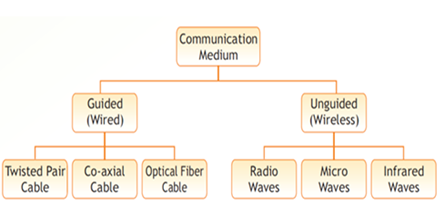
- A transmission medium is the path through which data travels from sender to receiver.
- Guided Media (Wired)
- Uses physical cables like twisted pair, coaxial cable, and optical fiber
- Signals travel in the form of electrical or light signals
- Unguided Media (Wireless)
- Uses electromagnetic waves
- Examples include radio waves, microwaves, and infrared
Network Devices
Repeater
- A repeater is used when a signal becomes weak or distorted over long distances.
- It regenerates (reshapes and amplifies) the signal to its original form.
Hub
- A hub is a device used to connect multiple devices (cable segments) in a network.
- It contains several input/output (I/O) ports, each connected to a device.
- When data is received on one port, it is broadcast to all other ports.
Bridge
- A bridge is used to connect two or more LANs, even if they operate at different speeds.
- It helps in expanding a network by combining smaller LANs into a larger one.
Switch
- A switch is used to connect individual devices (nodes) within a network.
- Each device is connected to a separate port in the switch.
- It forwards data only to the intended destination device, not to all devices.
Router
- A router is used to connect different networks such as LANs and WANs.
- It transfers data packets from one network to another.
- It uses a routing table to determine the best path for data transmission.
Gateway
- A gateway is used to connect networks that use different protocols.
- This allows communication between completely different types of networks.
Network Types
- On the basis of geographical area covered, computer networks are classified into different types.
- The main types of networks are PAN, LAN, MAN, and WAN.
- Each type differs in terms of coverage area, speed, and purpose.
Personal Area Network (PAN)
- PAN stands for Personal Area Network.
- It is a small network used for communication among devices located close to one person.
- PAN is commonly used to connect personal devices for everyday use.
- Covers a small range of approximately 10 meters
- Suitable for connecting personal devices like Bluetooth headphones, smartwatch, etc.
Examples of devices used in PAN:
- Personal computers
- Mobile phones
- Printers
- Scanners
- Telephones
- PDAs
- Video game consoles
Local Area Network (LAN)
- LAN stands for Local Area Network.
- It connects devices within a limited geographical area, such as a room, office, school, building, or campus.
- LANs are generally private networks owned by a single organization.
- Covers an area of up to 1 kilometer
- High speed network ranging from 10 Mbps to 1 Gbps
- Used for resource sharing like printers, files, and internet connection
Example of LAN
- School computer lab
- Office network
Metropolitan Area Network (MAN)
- MAN stands for Metropolitan Area Network.
- It connects multiple LANs within a city or large town.
- MAN may be managed by a single organization or multiple organizations.
- Covers an area up to approximately 50 kilometers
- Used for connecting offices, branches, or institutions within a city
- Helps in sharing resources among multiple LANs
Example of MAN:
- Cable TV network in a city
- University campuses across a city
Wide Area Network (WAN)
- WAN stands for Wide Area Network.
- It connects networks over a very large geographical area, such as countries or continents.
- WAN is mainly used for long-distance communication.
- Covers an area of around 1000 kilometers or more
- Connects multiple LANs and MANs
- Managed by multiple organizations
Example:
- Banking network across India
- The Internet (largest WAN)
Network Topology
- Network topology refers to the arrangement or layout of nodes (devices) in a computer network.
- It defines how devices are connected and how data flows between them.
Types of Topology (Based on Communication)
Broadcast Topology
- All nodes share a common communication channel (single link).
- When one device sends data, all devices receive it.
- There is a possibility of collision if multiple devices transmit at the same time.
- Special collision handling mechanisms are used.
- Examples: Bus Topology, Ring Topology
Point-to-Point Topology
- Every pair of devices has a dedicated communication link.
- Data is sent directly between two devices.
- Provides better security and performance.
- Examples: Star Topology, Mesh Topology
Types of Network Topologies
Bus Topology
- All devices are connected to a single main cable called the backbone using connectors called taps.
- When a device sends data, it is received by all devices on the network.
Advantages:
- Requires less cabling
- Easy to install and extend
Disadvantages:
- Difficult to detect and fix faults
- Failure of backbone cable can stop entire network
Ring Topology
- All devices are connected in a circular (ring) structure.
- Data travels in one direction, passing through each node until it reaches the destination.
Advantages:
- Easy fault detection and isolation
- Organized data flow
Disadvantages:
- Single point failure can disrupt entire network
- Data transmission may be slower due to multiple hops
Star Topology
- All devices are connected to a central device called a hub or switch.
- Communication between devices happens through the central hub.
Advantages:
- Easy to install, manage, and troubleshoot
- Failure of one device does not affect others
Disadvantages:
- Requires more cabling
- Failure of central hub leads to complete network failure
Mesh Topology
- Each device is connected to every other device in the network.
- Uses dedicated point-to-point connections.
Advantages:
- Highly secure and reliable
- No traffic or collision issues
Disadvantages:
- Requires large number of connections
- Complex and costly to install and maintain
Tree Topology
- A hybrid topology combining bus and star topology.
- The main backbone acts like the trunk of a tree, and star networks act like branches.
Advantages:
- Failure in one segment does not affect other segments
- Suitable for large networks
Disadvantages:
- Complex installation and configuration
- Failure of backbone cable affects entire network
Identification of Computers and Users over a Network
- In a network, multiple devices (nodes) communicate with each other.
- For proper communication, each device must have a unique identity.
- This identification is mainly done using:
- MAC Address
- IP Address
- Domain Name
MAC Address (Media Access Control Address)
- Every device connected to a network has a Network Interface Card (NIC).
- Each NIC is assigned a unique MAC address by the manufacturer.
- It is used to uniquely identify a device at the hardware level.
- It is Permanent and does not change
- It is 48-bit (12-digit hexadecimal) number
- Written in formats like:
- MM:MM:MM:SS:SS:SS OR MM-MM-MM-SS-SS-SS
- First half (MM:MM:MM) → Manufacturer ID & Second half (SS:SS:SS) → Unique serial number
IP Address (Internet Protocol Address)
- Every device on a network is assigned an IP address for communication.
- It is used to identify and locate a device on a network.
- 32-bit (IPv4) address
- Written in dotted decimal format (e.g., 59.177.134.72)
- Each part ranges from 0 to 255
Domain Name
- IP addresses are difficult to remember, so domain names are used.
- A domain name is a human-readable name assigned to a server.
- It is used in URLs to identify websites.
- Example: www.cbse.nic.in
Structure of Domain Name:
- Top Level Domain (TLD) → .in, .com, .org
- Subdomain(s) → nic, cbse
Types of Domain Names:
1. Generic Domains
- .com → Commercial
- .edu → Educational institutions
- .gov → Government
- .mil → Military
- .net → Network organizations
- .org → Non-profit organizations
2. Country-Specific Domains
- .in → India
- .us → USA
- .jp → Japan
- .au → Australia
- .ca → Canada
Domain Name Resolution
- Domain Name Resolution is the process of converting a domain name into its IP address.
Steps:
- User enters a URL in the browser
- Browser checks if IP is already stored (cache)
- If not found, request is sent to DNS (Domain Name Server)
- DNS returns the corresponding IP address
- Browser connects to the server using that IP
- Website is displayed to the user
Internet and Its Terminology
- The Internet plays a major role in learning, communication, and digital development.
- It helps people gain knowledge and improve digital literacy, making them capable of using modern technology effectively.
Digital Literacy
- Digital literacy refers to having knowledge and awareness of digital technologies such as computers, smartphones, tablets, and other electronic devices.
- It also includes the ability to use software tools and the Internet efficiently.
- Supports various fields like: Education, Social networking, E-commerce, Healthcare, Tourism
- Provides access to online courses (MOOCs) without limitations of time and place
Internet Services
Electronic Mail (E-Mail)
- Email is used to send and receive messages electronically.
- Messages can include text, images, audio, video, and attachments.
- Emails can be sent to one or multiple recipients.
Types of Email Applications:
- Web-based → Gmail, Yahoo Mail
- Desktop-based → Microsoft Outlook, Thunderbird
Protocols Used:
- SMTP (Simple Mail Transfer Protocol) → sending emails
- POP3 (Post Office Protocol) → receiving/downloading emails
File Transfer (FTP)
- FTP (File Transfer Protocol) is used to transfer files between computers over a network.
- Works on client-server architecture
- Allows users to upload and download files
Remote Login (TELNET)
- TELNET stands for Terminal Network
- It allows a user to access and control a remote computer
- Requires IP address + username + password
World Wide Web (WWW)
- The World Wide Web (WWW) is a collection of web pages stored on servers across the Internet.
- Web pages may contain text, images, audio, videos, and hyperlinks.
- Uses HTTP (HyperText Transfer Protocol)
Internet Protocol Suite (TCP/IP Model)
- The Internet Protocol Suite is a set of rules used for communication over networks.
- Commonly known as TCP/IP, based on:
- TCP (Transmission Control Protocol)
- IP (Internet Protocol)
Layers of TCP/IP Model
Application Layer
- Responsible for creating and processing data/messages
- Adds necessary headers to the message
- Protocols:
- HTTP → web communication
- POP3 → email retrieval
Transport Layer
- Responsible for end-to-end communication
- Divides data into smaller units called segments
- Adds port numbers and ensures proper sequence and reassembly of data
- Protocols:
- TCP → Reliable, error-free delivery
- UDP → Fast but less reliable
Internet Layer
- Adds IP address of sender and receiver
- Responsible for routing data packets
- Protocol:
- IP (Internet Protocol)
Link Layer (Host-to-Internet Layer)
- Responsible for physical transmission of data
- Adds MAC (physical) addresses to packets
Cyber Threats and Cyber Security
Malware
- Malware (Malicious Software) refers to harmful programs designed to:
- Damage a system
- Disrupt normal functioning
- Gain unauthorized access
- Deny access to legitimate users
- Common types of malware include Virus, Worm, and Trojan Horse.
Virus
- A virus is a malicious program that infects files and system areas.
- It can replicate itself and spread by attaching to programs or files.
- It Effects:
- Corrupts or deletes files
- Slows down system performance
- May stop system functioning
Types of Virus:
- Boot sector virus
- File infector virus
- Macro virus
Worm
- A worm is a self-replicating malware that spreads through networks.
- It does not require a host program to function.
- Effects:
- Creates multiple copies of itself
- Consumes system memory and bandwidth
- May crash the system or entire network
- Example: Code Red Worm (spread rapidly within hours)
Trojan Horse
- A Trojan Horse is a malicious program disguised as a useful or legitimate software.
- Gets installed along with genuine applications (e.g., games)
- Creates a backdoor for hackers
- Effects:
- Allows hackers to monitor activities
- Can steal or damage data
- Gives unauthorized control over the system
Eavesdropping
- Eavesdropping is the act of secretly listening to private communications without permission.
- It can occur through phone calls, emails, messaging apps, or networks.
- Leads to loss of privacy and confidential information.
Denial of Service (DoS Attack)
- A denial-of-service attack (DoS attack) is a cyber-attack in which a machine or network resource becomes unavailable to its users by temporarily or indefinitely disrupting its services.
- It is usually carried out by flooding the targeted system or resource with a large number of unnecessary requests.
- This overload prevents the system from processing legitimate requests, making it inaccessible to genuine users.
- A DoS attack can be understood as a situation where a group of people crowd the entrance of a shop, making it difficult for actual customers to enter.
Phishing
- Phishing refers to the act of stealing a user’s personal information through fraudulent emails.
- These emails either contain embedded forms that ask for personal details or include links to web pages that prompt the user to provide such information.
- The information targeted in phishing may include bank account numbers, debit/credit card details, passwords, or any other valuable data.
Cyber Crime
- Cybercrimes are crimes related to the misuse of computers or the Internet such as theft, fraud, and forgery.
- According to the IT Act, cybercrime is an unlawful act in which the computer is used as a tool, a target, or both.
Types of Cyber Crimes:
- Cyber bullying refers to harassment or bullying carried out using electronic devices like computers, mobile phones, or laptops.
- Cyber stalking involves using electronic communication to repeatedly follow or contact a person despite clear disinterest.
- Online job fraud is an attempt to cheat people seeking jobs by offering false promises of better employment and higher salaries.
- Vishing is the act of obtaining personal information such as customer ID, banking passwords, ATM PIN, OTP, or card details through phone calls.
- SMSing involves sending fraudulent text messages to trick users into calling fake numbers, visiting fake websites, or downloading malicious content.
- SIM swap scam refers to obtaining a duplicate SIM card for a registered mobile number to gain unauthorized access.
- Credit or debit card fraud is the unauthorized use of someone else’s card details for transactions or withdrawing money.
- Identity theft is the dishonest use of another person’s electronic signature, password, or unique identification details.
- Spamming involves sending unwanted emails or messages to promote products, services, or websites.
- Ransomware is a type of attack in which the victim is asked to pay money to regain access to their locked or encrypted device.
Network Security Tools and Services
- With the increasing use of the Internet for sharing resources and accessing data, more users are using it for both good and harmful purposes, making security a major concern.
- Every user must be aware of security risks and take proper protective measures while using the Internet.
Network Layer Security
- Network layer security ensures protection of communication over networks using secure protocols.
- TCP/IP protocols can be secured using cryptographic methods and security protocols such as Secure Sockets Layer (SSL).
Firewalls
- A firewall is used to protect an internal network from malicious traffic coming from external networks.
- It can be implemented using a router or a dedicated computer placed between internal and external networks.
- A firewall monitors and filters network traffic, allowing only authorized data to pass through.
- Hardware firewalls (like routers) prevent external threats, while software firewalls protect individual systems.
- Firewalls may also encrypt data to enhance security.
Antivirus
- Antivirus is software designed to protect a system from malicious and unwanted programs.
- It detects harmful programs by scanning files and comparing them with a database of known malware.
- This database is regularly updated to identify new threats.
- Once detected, harmful programs are removed or disabled to protect the system.
Password Managers
- A password manager is a software tool used to store and manage passwords securely.
- It stores passwords in encrypted form, ensuring data safety.
- Users need to remember only one strong master password to access all stored credentials.
Cyber Law
- Cyber laws are rules and regulations for the proper and secure use of electronic resources and the Internet.
- They help prevent cybercrimes and define punishments for offenders.
- The Information Technology Act, 2000 and its amendment in 2008 deal with cyber security and cybercrime issues.
- Cyber police are responsible for handling cybercrime cases and taking necessary legal action.
Protective Measures while accessing Internet
- Never click on suspicious links on web pages or links received through emails if you are not sure about their authenticity, as they may lead to harmful or fake websites.
- Passwords should always be strong and changed regularly because they are used to authenticate users and provide access to systems; weak passwords can be easily cracked.
- Avoid using obvious passwords such as names, mobile numbers, or date of birth, and instead use long passwords with a combination of numbers, symbols, and characters.
- Never share personal information like date of birth, home address, phone number, bank details, passwords, or credit/debit card details with unknown sources.
- Report phishing attempts to concerned authorities or on cybercrime portals, and mark suspicious emails as spam to avoid further risk.
- Always ensure that communication over the Internet is secure by checking for HTTPS in the website URL and a padlock symbol in the address bar, which indicates a secure connection using SSL certificate.
- Make sure your web browser is updated regularly, as updates include important security patches that protect against vulnerabilities.
- Be careful while interacting on social networking sites; do not accept requests from unknown users and trust messages only if you are sure about the sender.
- Avoid posting offensive or inappropriate content online, as it may lead to legal consequences.
- Do not spread rumors or unverified information online, as it can be considered a cybercrime.
- If someone harasses or threatens you online, take a screenshot as proof, block the person, and report the incident to the platform administrator.
- Use updated antivirus software, firewalls, and secure browsing practices to protect your system from threats.
- Always check the website address carefully, as fake websites may look similar to real ones and are often used for phishing.
- Delete cookies regularly, as they store user information and can be misused by hackers to gain unauthorized access; also clear temporary files during browsing.